
Why Your Website Is Not Showing Up on Google: 14 Causes and Fixes
Work through these checks in order, fastest first. Each cause comes with the Search Console report or status that confirms it, in Google’s own wording, and the fix that clears it.
Key takeaways
- A website usually fails to show up on Google for one of three reasons: Google hasn’t indexed it (blocked, not yet found, or judged not worth indexing), it is indexed but ranks too low to be seen, or the business is missing from the local map results.
- A site: search gives a rough answer in seconds, but Google says it doesn’t necessarily return every indexed URL. Search Console’s URL Inspection tool gives the definitive status of a page.
- The two problems that can hide a whole site, a manual action and a security issue, each have their own Search Console report; a green check mark in both rules them out.
- Accidental blocks such as a leftover noindex tag are quick to fix. “Crawled - currently not indexed” and weak rankings usually need better content and internal links, and Google says validating a fix typically takes up to about two weeks.
On this page
- Start here: missing or buried?
- Search Console status decoder
- Causes 1–2: site-wide flags
- Causes 3–5: blocks and errors
- Causes 6–7: not found yet
- Causes 8–10: crawled, not indexed
- Cause 11: JavaScript rendering
- Causes 12–13: indexed, not ranking
- Cause 14: missing on Maps
- After the fix
- Common questions
- Sources
Is your site missing from Google, or just hard to find?
Find out which before you change anything, because the fixes point in opposite directions. A site missing from Google’s index needs something unblocked or discovered; a site buried on page four needs better pages. Two searches tell you which you have.
First, type site:yourdomain.com into Google (no space after the colon). If nothing comes back, Google has indexed little or nothing of your site, and causes 1 to 7 below are your suspects. Second, search for your exact business name. If your homepage appears for the name but not for “emergency plumber Tulsa”, you are indexed and have a ranking problem: skip to causes 12 to 14.
Treat the site: search as a smoke test, not a measurement: Google says the operator “doesn’t necessarily return all the URLs that are indexed.” To know for certain whether a page is indexed, use the URL Inspection tool in Google Search Console, Google’s free service for site owners. If you haven’t set it up, do that first; every check below uses it.
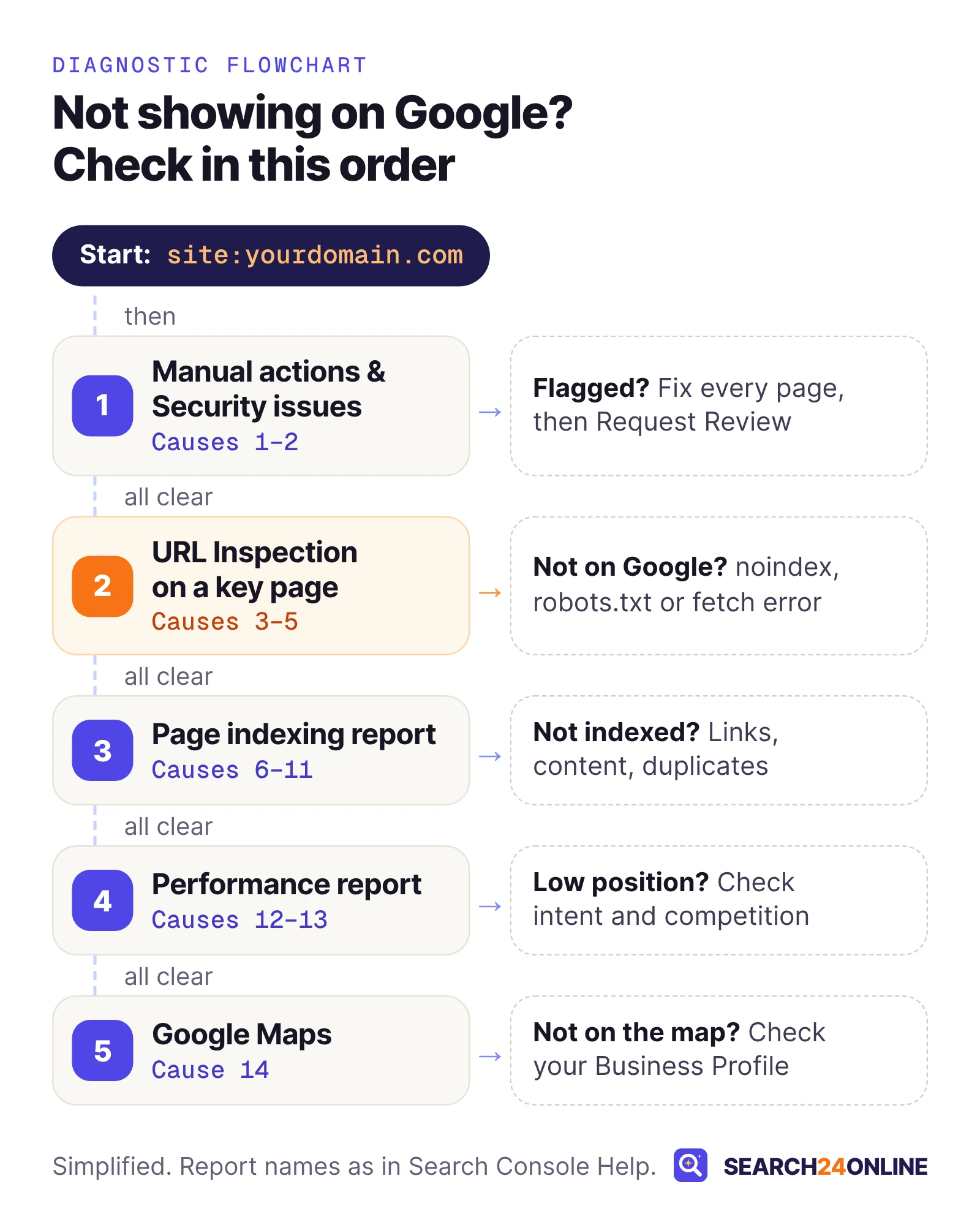
The 14 causes below follow that order: the first checks take seconds and cover the whole site, the later ones concern individual pages and rankings.
What does each Search Console status mean?
If Search Console already shows you a status, it points straight at the cause. The labels below follow Google’s help pages for the Page indexing report and URL Inspection.
| What Search Console says | What it means | Go to |
|---|---|---|
| URL is unknown to Google | Google has not seen this URL before | Causes 6 and 7 |
| URL marked ‘noindex’ | A noindex rule told Google not to index the page | Cause 3 |
| URL blocked by robots.txt | Your robots.txt file stops Google from crawling it | Cause 4 |
| Server error (5xx), Blocked due to access forbidden (403), Blocked due to unauthorized request (401), Soft 404, Redirect error | Google didn’t get a normal, working page back | Cause 5 |
| Discovered - currently not indexed | Google found the URL but has not crawled it yet | Causes 6 and 7 |
| Crawled - currently not indexed | Google crawled the page and chose not to index it, for now | Causes 8 and 10 |
| Duplicate without user-selected canonical; Duplicate, Google chose different canonical than user | Google indexed another URL as the main version | Causes 9 and 10 |
| Page indexed without content | The page is indexed, but Google could not read its content | Cause 11 |
| Alternate page with proper canonical tag; Page with redirect | Usually fine: this URL points to another one; check that the target is indexed | Usually no action |
Don’t chase a zero in the “Not indexed” count. Google says you should not expect all URLs on your site to be indexed, only the canonical pages, and that a site with fewer than 500 pages probably doesn’t need the Page indexing report at all.
Causes 1–2: Has Google flagged the whole site?
Check this first: it takes thirty seconds, and when it applies nothing else matters until it’s fixed. Open the Manual actions and Security issues reports; a green check mark in each means you can move on.
Cause 1: A manual action
A manual action means “a human reviewer at Google has determined that pages on the site are not compliant with Google’s spam policies,” in part of the site or all of it. The report names the type; examples include “Unnatural links to your site”, “Thin content with little or no added value”, “Back button hijacking” and “Major spam problems”.
Fix it: correct every affected page, not a sample, then click Request Review and explain what you changed. Google says most reconsideration reviews can take several days or weeks. If a past SEO provider bought links, cleaning that up is the bulk of the work; our guide to Google’s spam policies in plain English explains what each policy covers.
Cause 2: A security issue (a hacked site)
The Security issues report shows Google’s findings when a site appears hacked or could harm visitors. The categories are hacked content (with types such as “Hacked: Content injection” and “Hacked: URL injection”), malware and unwanted software, and social engineering, such as “Deceptive pages”. Google says affected pages can carry a warning label in search results, and browsers can show a full-page warning before visitors reach you.
A common pattern: an outdated plugin lets someone inject hundreds of spam pages selling pills or counterfeit goods under your domain. The owner never sees them, but a site: search does. Fix it: remove the injected content, close the hole (update or remove the plugin, change passwords), then click Request Review. Google says a review can take from a few days to a few weeks.
Causes 3–5: Is something on your site keeping Google out?
This is where we find the most avoidable problems. Paste your homepage or a key service page into the bar at the top of Search Console. If URL Inspection says “URL is not on Google”, read three fields in its Page indexing section, “Crawl allowed?”, “Page fetch” and “Indexing allowed?”, which map to the three causes below.
Cause 3: A noindex rule (“Indexing allowed?” says No)
A noindex rule tells Google to drop the page from its results entirely, even if other sites link to it. It sits in the page’s HTML or in the server’s response headers.
<!-- In the page's <head> -->
<meta name="robots" content="noindex">

# Or as an HTTP response header
X-Robots-Tag: noindex
The classic way this happens: a site is built on a staging server with search engines blocked, then launched with the setting still on. Google notes that systems such as WordPress, Wix and Blogger may have a search engine settings page, so check there, then your SEO plugin’s per-page settings. Our website migration checklist puts this check on launch day, where it belongs.
Cause 4: robots.txt blocks crawling (“Crawl allowed?” says No)
Your robots.txt file, at yourdomain.com/robots.txt, tells crawlers which paths to avoid. Two lines left over from development block everything.
User-agent: *
Disallow: /
Delete the Disallow: / line or narrow it to folders you genuinely want skipped. Robots.txt also gets misused the other way. Google says it “is not a mechanism for keeping a web page out of Google”: a blocked URL can still be indexed, without a description, if other pages link to it. That shows up as “Indexed, though blocked by robots.txt”. To keep a page out, allow crawling and use noindex, because Google can only see a noindex rule on a page it is allowed to crawl.
Cause 5: Server, login and error responses (“Page fetch” failed)
Google’s documentation lists server problems, network issues and pages that require a login among the reasons Googlebot may not crawl a page. In Search Console these appear as “Server error (5xx)”, “Blocked due to unauthorized request (401)”, “Blocked due to access forbidden (403)”, “Redirect error” or “Soft 404”, which is a page that says “not found” but returns a normal success code.
In audits we often find a firewall or bot-protection service blocking Googlebot while the site loads normally for people, producing 403s that only Google sees. Confirm it: click Test live URL in URL Inspection; “URL is available to Google” means no blocks or detectable errors. Fix it: ask your host to allow Googlebot, remove password protection from public pages, shorten redirect chains, and make removed pages return a real 404 or redirect to their replacement.
Causes 6–7: Has Google found your pages yet?
If nothing is blocking Google, does it know your pages exist? Google finds pages by following links from pages it already knows and by reading sitemaps you submit. A page with neither is effectively invisible.
Cause 6: The site or page is new, and Google hasn’t got to it
URL Inspection shows “URL is unknown to Google” when Google hasn’t seen the URL before. If it has seen it but not visited, the Page indexing report lists it as “Discovered - currently not indexed”. Google explains that this typically happens when crawling was expected to overload the site, so it rescheduled the crawl, which is why the last crawl date is empty.
Fix it: submit an XML sitemap in Search Console, link to the new page from your homepage or a relevant section, and request indexing for your most important URLs. Then wait: Google says crawling can take anywhere from a few days to a few weeks. In our experience, a new domain with no outside links sits at the slow end. For timelines beyond indexing, see how long SEO takes to work.
Cause 7: Weak internal links leave pages orphaned
An orphan page has no links pointing to it from the rest of your site. In our experience, pages listed only in a sitemap tend to linger in “Discovered - currently not indexed”. Picture a dental group whose location pages are reachable only through a store-finder search box: visitors get there, a crawler following links doesn’t.
Confirm it: an empty “Referring page” field in URL Inspection is a hint, though Google notes it doesn’t prove no link exists. An SEO crawler run on your site shows which pages get no internal links. Fix it: link every important page from at least one relevant page that is itself indexed, such as a services hub, a locations page or related articles. Use ordinary <a href> links; Google says it can only find links that are HTML anchor elements with an href attribute.
Causes 8–10: Why would Google crawl a page and not index it?
Because indexing is a choice. Google’s guide to how Search works says it doesn’t guarantee that it will crawl, index or serve any page, and lists low-quality content among the reasons a page may not be indexed.
Cause 8: The page adds too little (“Crawled - currently not indexed”)
Google says the page “was crawled by Google but not indexed”, may or may not be indexed later, and needn’t be resubmitted. Resubmitting is the common reaction anyway. In our experience these pages are usually thin: a 150-word service page, a tag archive, a product page with only the manufacturer’s description, a blog post that says what fifty others already say.
Fix it: add what only you can say: price ranges, your process, the area you serve, photos of real work, answers to customers’ actual questions. If a page can’t be improved, merge it into a stronger one or remove it. Then link to it from relevant pages.
Cause 9: A canonical tag or duplicate points Google elsewhere
A canonical URL is the version Google treats as the main one when several URLs show the same or very similar content. Two statuses signal trouble. “Duplicate without user-selected canonical” means Google sees the page as a copy and chose another URL. “Duplicate, Google chose different canonical than user” means your declared canonical differs from Google’s choice, and Google indexed its own pick.
Confirm it: in URL Inspection, compare “User-declared canonical” with “Google-selected canonical”. A template that sets every page’s canonical to the homepage, or http and https versions both live, are typical culprits. Fix it: make each page’s canonical tag point to itself (or to the true original), redirect duplicate versions to one URL, and list only canonical URLs in your sitemap.
Cause 10: Near-duplicate pages compete with each other
This is the site-wide version of causes 8 and 9, and one of the most frequent audit findings we see. A typical case: a landscaping company with 25 “lawn care in [town]” pages that differ only in the town name. Google indexes a few, files the rest under “Duplicate without user-selected canonical” or “Crawled - currently not indexed”, and the indexed ones split the signals between them. That self-competition is called keyword cannibalization.
Fix it: keep separate pages only where you can say something genuinely different (local projects, team, reviews, regulations), and consolidate the rest into one strong page with 301 redirects. Our SEO audit walkthrough shows how to map which page should own which search.
Cause 11: Can Google see what your visitors see?
Not always, if your content depends on JavaScript. Google processes JavaScript sites in three phases (crawling, rendering and indexing), and says a page may wait in the rendering queue for a few seconds or longer. Content that appears only after scripts run can be missed or picked up late.
Confirm it: run Test live URL, then View tested page. Search the rendered HTML for a sentence from the middle of your page; if it isn’t there, Google isn’t seeing it. A “Page indexed without content” warning in the Page indexing report also means Google couldn’t read what was on the page. Fix it: Google still recommends server-side rendering or pre-rendering, which puts the content in the HTML your server sends. One trap to know about: Google says that when it sees a noindex tag it may skip rendering, so a script that removes noindex after the page loads may never run.
Your browser runs every script, remembers your login and may skip a firewall that blocks bots. What matters is what Googlebot receives, so judge causes 3, 4, 5 and 11 from URL Inspection’s live test, not from how the page looks to you.
Causes 12–13: Indexed, but nowhere near page one?
If URL Inspection says “URL is on Google”, the page is indexed and the problem is ranking. Google’s guide to how Search works lists content that is irrelevant to the query, or low quality, among the reasons an indexed page doesn’t show.
Confirm it: open the Performance report, filter by the page, and look at the Queries tab. Google defines average position as the average position of the topmost result from your site. A page with impressions at an average position of 38 is indexed and on the edge of relevance; a page with no impressions at all for the phrase you care about isn’t being considered for it.
Cause 12: The page targets the wrong search or the wrong intent
Search intent is what the person wants when they type the phrase. Search your target phrase and look at what ranks. If the top results are price guides and you have a sales page, Google has told you what it thinks the searcher wants. Or the page never uses customers’ words: “HVAC solutions” when people search “furnace repair”. Fix it: match the format that ranks, name the service in plain words in the title and headings, and answer the questions people ask about it.
Cause 13: The competition is simply stronger
Sometimes nothing is broken: the pages above you are more thorough, better known and better linked. A small law firm competing for “personal injury lawyer” in a large city is up against firms that have published detailed guides for a decade. Fix it: start with narrower searches you can win, such as a practice area, a suburb or a question. Build pages that beat what ranks rather than copy it, and earn links from relevant local and industry sites. If rankings were fine and then fell after a Google update, that’s a different diagnosis: see what to do after a core update traffic drop.
Cause 14: Why aren’t you showing on Google Maps?
Because the map results are driven by your Google Business Profile, not your website alone. Many owners who say “we don’t show up” mean the map pack, the block of local businesses beside a map, and a perfectly indexed site can still be absent there.
Google’s Business Profile help says local results are based mainly on relevance (how well a profile matches the search), distance (how far the business is from the searcher) and prominence (how well known the business is). It adds that there’s no way to request or pay for a better local ranking, that complete and accurate information makes a business more likely to show, and that verification makes it more likely to appear.
Confirm it: search your business name on Google Maps. If no profile appears, it may not exist, may not be verified or may have been suspended; sign in to your Business Profile to see which. If it appears for your name but not for your service, it’s a relevance or prominence problem. Distance matters too: a searcher 20 miles away may simply not see you. Fix it: verify the profile, choose the most accurate primary category, fill in every field and keep collecting reviews. Our step-by-step guide to optimizing your Google Business Profile covers the details.
What should you do after fixing the cause?
Tell Google once, then wait. Nagging doesn’t speed anything up: Google says requesting a recrawl multiple times for the same URL won’t get it crawled any faster, and that indexing is never instant, even after a direct request.
- Re-test the pageRun Test live URL and confirm it now says “URL is available to Google”.
- Request indexing for the key pagesClick Request indexing for your handful of most important URLs. There’s a daily limit, and Google says indexing can take up to a week or two.
- Resubmit the sitemap for everything elseFor more than a few pages, Google recommends a sitemap rather than one-by-one requests.
- Click Validate FixIn the Page indexing report, open the issue and click Validate Fix once. Google says validation typically takes up to about two weeks and sometimes much longer; don’t click it again while it runs.
- Check again in two to four weeksRe-inspect the URLs and watch impressions in the Performance report. Indexing comes first, then impressions, then clicks.
Our team brings over 20 years of digital marketing experience, and sites that don’t show up rarely have just one cause. The usual pattern is a stack: an orphaned page that is also thin and competes with three near-copies. Clear the blocks, then discovery, then quality, then ranking, re-checking after each layer. Our technical SEO checklist turns the technical half of this into a routine you can repeat every quarter.
If you’d rather have these checks run for you, our free SEO + GEO report analyzes your website and gives you password-protected dashboard access to the findings within 24 hours. No one can promise you a ranking, but you can make sure nothing on your site is stopping Google from considering you.
Common questions
How long does it take for a new website to show up on Google?
There is no fixed time, and Google does not promise to index every site. Its documentation says crawling can take anywhere from a few days to a few weeks; a submitted sitemap and links from other websites help Google find a new site sooner.
Does Request indexing in Search Console guarantee my page will appear?
No. Google says requesting indexing does not guarantee the page will appear in its index, and asking repeatedly for the same URL will not get it crawled any faster. Fix the cause first, then request indexing once.
Why does my website show up when I search my business name but not my services?
Because the site is indexed but not ranking for those searches, which is a ranking problem rather than an indexing one. Check the Performance report in Search Console for impressions and average position, then compare your page with what currently ranks for that search.
Can I pay Google to index my website or rank it higher?
No. Google states that it does not accept payment to crawl a site more frequently or rank it higher. Google Ads buys a labeled ad placement and does not change organic crawling, indexing or ranking.
Is it a problem if some of my pages are not indexed?
Not necessarily. Google’s Page indexing report help says you should not expect every URL on your site to be indexed, only the canonical pages. It matters when an important page is missing.
Sources
- Search Console Help: Page indexing report
- Search Console Help: URL Inspection tool
- Search Console Help: Manual actions report
- Search Console Help: Security issues report
- Search Console Help: Performance report (Search results)
- Google Search Central: In-depth guide to how Google Search works
- Google Search Central: site: search operator
- Google Search Central: Introduction to robots.txt
- Google Search Central: Block Search indexing with noindex
- Google Search Central: Understand the JavaScript SEO basics
- Google Search Central: Ask Google to recrawl your URLs
- Google Business Profile Help: Tips to improve your local ranking on Google
Find out what is keeping your site off Google — free.
We’ll analyze your website, including indexing and crawl issues, create your SEO + GEO report and give you password-protected dashboard access to view it.
Free · No obligation · We only review your public pages.