
Website Redesign Without Losing Rankings: The Migration Checklist
Most traffic lost in a redesign or migration is lost to a handful of avoidable mistakes. Here is the phased checklist we use, from the first crawl of the old site to the 90-day review, with Google’s own site-move rules at each step.
Key takeaways
- A redesign or migration keeps its rankings when every old URL that earned traffic or links 301-redirects to its closest new equivalent, the new pages keep the content that ranked, and no staging block (noindex, robots.txt or a password) survives launch.
- Expect a wobble even when everything is right. Google says medium-sized sites can take a few weeks or more before the new URLs gradually appear, and Googlebot must visit every old and new URL at least once to complete a move.
- Search Console’s Change of Address tool is only for domain or subdomain moves, submitted after redirects are live. Its effects last 180 days, and it is not used for HTTP to HTTPS, www to non-www or path changes.
- Keep redirects for at least a year, as Google’s site-move guide advises. Domain changes are the slowest to settle: a study of 892 domain migrations (Search Engine Journal, January 2025) found an average of 523 days to regain previous traffic.
On this page
Why do redesigns and migrations lose traffic?
Mostly because something Google relied on disappears at launch: a URL, a block of text, an internal link or access to the page. Google is not hostile to change. Its site-move guide says permanent redirects such as 301s do not lose PageRank, the link value that flows from one page to another. Traffic drops when the new site gives Google less to work with than the old one did.
When we review migrations that went wrong, the cause is almost always one of these:
- Old URLs stop working. Pages that ranked or earned links now return 404, or every retired page is redirected to the home page. Google’s guide warns that redirecting many old URLs to one irrelevant destination “might be treated as a soft 404 error.”
- The content that ranked is gone. A design-led rebuild trims long service pages to a headline and three icons, folds FAQs into tabs, or merges five pages into one without keeping what each answered.
- Staging settings ship to production. The noindex tag or the
Disallow: /line that hid the test site goes live with it. Google’s troubleshooting list for site moves names this first. - Internal links change. A new menu drops links to category pages, or pages that sat two clicks from the home page are now buried or orphaned.
- Templates regress. Titles reset to defaults, structured data vanishes with the old theme, canonicals point at the staging domain, or pages get slower (our Core Web Vitals guide explains how to check).
Domain changes add one more cost: Google has to reprocess signals for every URL on two sites. Search Engine Journal contributor Dan Taylor measured 892 domain migrations, mostly with Ahrefs data (January 2025). On average the new domain took 523 days to reach the old domain’s estimated organic traffic, the fastest took 19 days, and 17% had not recovered after 1,000 days. These are third-party estimates for domain moves only: a warning about the long tail, not a forecast for your site.
Which kind of migration are you doing, and how risky is it?
The risk depends on how much changes at once, and each type needs a different part of the checklist.
| Change | Do URLs change? | Redirects needed | Change of Address tool? | Main risk (our view) |
|---|---|---|---|---|
| Redesign, same platform and URLs | No | Only for removed or merged pages | No | Lost text, links and structured data in new templates |
| New host or CDN, same URLs | No | None | No | Downtime, server errors, capacity |
| HTTP to HTTPS, or www to non-www | Yes (protocol or host) | Every URL, site-wide rule | No | Mixed signals: old versions still linked or canonical |
| New URL structure, same domain | Yes | Every changed URL, one to one | No | Mapping errors and redirect chains |
| New platform (e.g. WordPress to Shopify) | Usually | Every changed URL | Only if the domain also changes | URL patterns the platform forces on you |
| New domain, or merging domains | Yes | Every URL to its equivalent | Yes, for each old domain and subdomain | Longest reprocessing period |
Google’s advice for combined projects is blunt: “Plan your changes to your site one after the other, not everything at the same time.” Its example: move to the new domain, then change the layout. Sequencing also makes a drop diagnosable, because only one variable moved.
In practice, a redesign and a platform change often arrive together. Our view: accept that pairing if you must, but run any domain change as a separate project, and keep URLs identical wherever the new platform allows. For large sites, Google recommends “initially moving just a piece of the site to test any effects on traffic and search indexing.”
What should you do before launch?
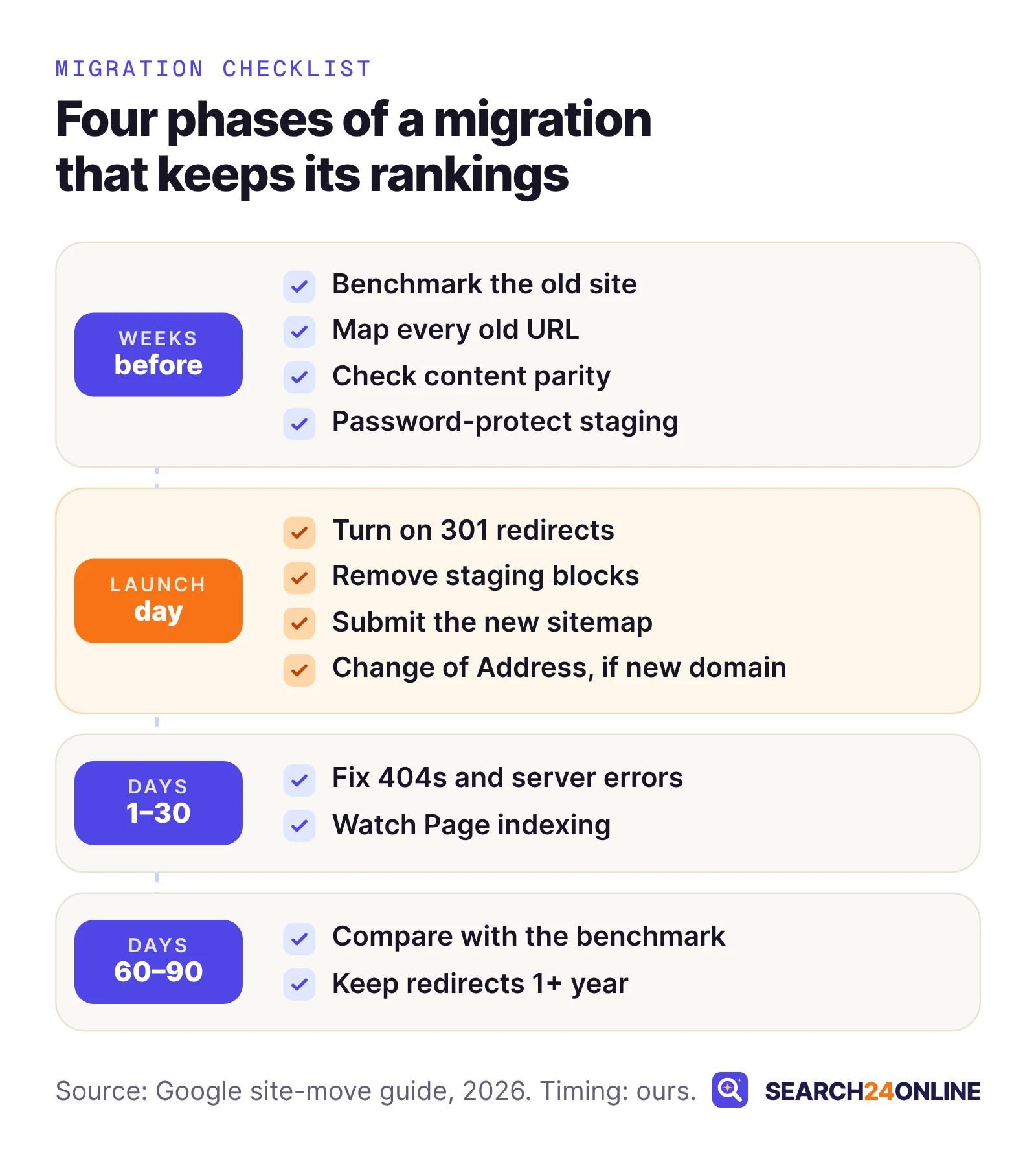
Most of the work happens before launch: record what the old site has, decide where each piece goes and check that the new site contains it. Give this phase several weeks; a rushed URL map is the most expensive shortcut in the project.
1. Crawl and benchmark the old site
You cannot protect what you have not listed. Google’s guide suggests building the list of old URLs from your sitemaps, your highest-traffic pages, your content management system, server logs and the Links report in Search Console, and including images, videos, JavaScript and CSS files. Run a full crawl with an SEO crawler as well, because it finds the pages nobody remembers.
Then save the benchmark. Export clicks and impressions by page and query from Search Console, and landing-page sessions and conversions from analytics. Keep the crawl data too: titles, descriptions, headings, canonicals, structured data and internal links per page. After launch, every question starts with “compared with what?” This file is the answer.
2. Map every old URL to a new one
The URL map is a spreadsheet with one row per old URL: the old address, the new one, the response it should get (301, 404 or 410) and a priority based on traffic and links. Google’s rules are simple. Redirect each page to its closest equivalent; merged content points to the page that replaced it; content you are not moving returns 404 or 410.
A redesign is also the cheapest moment to fix keyword cannibalization, where several pages compete for the same search. A common situation: a regional HVAC company with 40 service pages that all target “HVAC repair” with only the town name changed. Merging them into a few strong pages and redirecting the rest fixes the competition and the migration in one step. Our walkthrough of what an SEO audit includes shows how to find these overlaps.
3. Plan how the redirects will be built
Google recommends server-side permanent redirects (301 or 308) and treats JavaScript redirects as a last resort, because rendering can fail and Google may never see them. Use pattern rules where whole folders move the same way, and individual rules for the rest.
Check the old site’s existing redirects too. If /a already redirects to /b and /b is now moving to /c, update the first rule to point straight at /c. Google’s crawlers follow up to 10 redirect hops, but its site-move guide asks you to avoid chains and keep any you cannot avoid to ideally three hops or fewer.
4. Check content parity page by page
Content parity means each important new page still carries what made the old one rank: the text that answers its queries, title, meta description, headings, internal links, alt text and structured data. Google also asks for a self-referencing canonical tag on each new page. And it says to “change the internal links on the new site from the old URLs to the new URLs.”
Compare old and new side by side for your top 50 to 100 landing pages. When the designers want shorter pages, our rule: keep every section that matches a query in your benchmark.
5. Keep the staging site out of Google
Password protection is the safest option. Google recommends it for private content, and it keeps out people and every crawler at once. A noindex tag also works, but only if the page is not blocked in robots.txt, because a blocked crawler never sees the tag. Robots.txt alone is not enough: Google’s Page indexing help notes that a robots.txt block does not guarantee a URL stays out of the index.
Google’s guide asks you to plan the removal of every temporary block and to list the URLs each one affects. Write that list now, with the noindex setting, the robots.txt rules and the password, and make removing them a named launch-day task with an owner.
6. Prepare Search Console, analytics and the server
Verify the old and new sites in Search Console, including every variant (www and non-www, HTTP and HTTPS), and keep the verification tags in the new code. Google also asks you to re-upload any disavow file, check a newly bought domain for manual actions, run analytics on both sites and make sure the server can handle extra crawling. Then, as Google suggests, launch in a quiet period for your business.
What has to happen on launch day?
Launch day is execution and testing, in order. The sequence follows Google’s site-move guide, with the checks we add.
- Turn on the redirectsDeploy the full redirect map at the moment the new site goes live, not days later.
- Remove every staging blockTake off the password, the noindex tags and any robots.txt rules that were only there for testing. Check the live robots.txt file yourself.
- Check canonicals and robots meta tagsEach new page should carry a canonical pointing to its own new URL, and no robots meta tag should still say noindex.
- Test the redirectsRun your top URLs from the benchmark through a crawler in list mode: each should return one 301 to a page that loads with a 200 status. Spot-check important pages with URL Inspection in Search Console.
- Submit Change of Address, for domain moves onlyFor a domain or subdomain change, submit it in Search Console for every verified variant of the old site. Skip this step for every other kind of migration.
- Submit the new sitemapList only new, final, absolute URLs. Google says you can then remove the old sitemap, “since Google will use the new sitemap going forward,” although its monitoring section also suggests submitting both to watch the old one empty out.
- Update the links you controlPoint internal links, your Google Business Profile, social profiles and ads at the new URLs, then ask your main linking sites to update theirs.
On an Apache server, the two most common rules look like this:
# One page that moved to a new address
Redirect 301 /services/ac-repair.html https://www.example.com/air-conditioning/repair/

# Whole domain moved, paths unchanged
RewriteEngine On
RewriteCond %{HTTP_HOST} ^(www\.)?old-example\.com$ [NC]
RewriteRule ^(.*)$ https://www.new-example.com/$1 [R=301,L]
On sitemaps, Google caps each file at 50,000 URLs or 50MB uncompressed, ignores the priority and changefreq fields, and uses lastmod only when it is consistently accurate. A sitemap that stamps every URL with the launch date tells Google nothing.
How do you use Search Console’s Change of Address tool?
You submit it for the old domain, and each of its variants, after the new site is live and redirecting. It tells Google that one domain has moved to another.
Before you start
- 301 redirects are live, at least from the old home page and ideally from every page. The tool checks a few samples.
- You own both properties in Search Console, under the same Google account.
- You use a domain-level property (example.com, m.example.com), not a path such as example.com/shop/.
What happens next
The tool runs pre-move checks; critical failures must be fixed before you continue. Once it accepts the move, both sites show a “move in progress” notice for 180 days. During that window, Google says it emphasizes the new site, forwards signals and prefers the new site when choosing canonical URLs. After 180 days, it no longer treats the two sites as related.
The help page says to keep redirects for at least 180 days; the site-move guide says at least a year. Follow the longer one, and keep the old domain registered. You can cancel within the 180 days by reversing the redirects and clicking Cancel Move.
Google says not to use it for HTTP to HTTPS (Google detects that itself), www to non-www, moving pages within one site, or hosting changes that keep the URLs. Subdomains, including www, are not moved automatically, so submit each variant you use.
What should you check in the first 30, 60 and 90 days?
Check daily in the first week, then at 30, 60 and 90 days against your benchmark. Google says Googlebot must visit every old and new URL at least once before a move is complete, on no fixed timetable, so watch what Google is doing, not just the calendar.
Add a custom annotation for the launch date in Search Console’s Performance report. Annotations are shared across the property but deleted after 500 days, so note the date elsewhere too.
First week: errors and access
Look for 404s from old URLs you missed, redirects to pages that do not exist and server errors. Google says 5xx errors slow its crawlers down, and URLs that keep returning them are eventually dropped. Fix missing redirects the same day, starting with pages that had traffic or links.
Day 30: is Google moving to the new URLs?
In the Page indexing report, old URLs should be moving to “Page with redirect” while the new site’s indexed count rises. Redirect warnings on the old sitemap are normal, Google says. New URLs should be earning impressions and clicks; compare your top 50 landing pages with the benchmark, page by page.
Day 60: canonicals and stragglers
Look for “Duplicate, Google chose different canonical than user”: Google indexed a different URL from the one you marked. After a move, that is often the old URL, kept alive by internal links, sitemaps or external links. Clean up those signals and keep asking linking sites to update.
Day 90: the verdict
Compare the last four weeks with the four before launch and, if you are seasonal, with last year. Our view: a same-domain migration still clearly down on its key pages at 90 days has a cause worth finding (see the recovery section below).
Our free SEO + GEO report analyzes your website, including redirects, robots.txt, the XML sitemap, indexability, canonicals and broken links, and you get password-protected dashboard access to view it within 24 hours.
What changes when you switch platforms, for example from WordPress to Shopify?
The platform decides your URLs, and its redirect tools have rules of their own. Few old addresses survive, so the URL map is essential.
Shopify documents its rules well. Products live under /products/ and collections under /collections/, and Shopify lists both as fixed paths. Its migration guide notes that a page such as /policies/shipping-policy on your old site might become /pages/shipping-policy. It also warns that the new link structure “is likely different from your previous service.” So a product at /store/blue-widget/ on the old site needs a redirect to /products/blue-widget, and each category one to its collection.
Shopify redirect rules to know before you build the map
- Redirects only fire on broken URLs. Shopify says that if the old URL “still loads a valid webpage, then the URL redirect won’t work.” If an imported page sits at the old path, delete or hide it first.
- Bulk import is supported. You can upload the whole map as a CSV from the URL redirects screen, using Shopify’s template.
- There is a ceiling. Standard stores can create up to 100,000 URL redirects and Plus stores up to 20,000,000.
- Some paths cannot be redirected. These include
/products,/collections,/collections/all, anything starting with/cartor/shop, and collection tag URLs. URLs with query strings may not behave as expected, so test any that carried traffic. - The store must be public to be crawled. Shopify generates
sitemap.xmlautomatically, but search engines cannot reach it while the store is in private mode. Shopify says indexing can take “a few days to a few weeks” after launch.
On any platform change, re-check what the old system did quietly: SEO plugins that wrote titles, descriptions and structured data; image alt text; and how filtered category pages were kept out of the index. These rarely survive an export. Our e-commerce SEO guide covers product and category pages in depth.
Traffic dropped after launch: how do you find and fix the cause?
Find which pages lost the traffic first, because the cause is almost always visible on them. A site-wide average hides everything; the 20 URLs that lost the most clicks usually point straight at the problem.
Rule out causes unrelated to the migration, such as seasonality or a core update in the same weeks. Our guide to traffic drops after a core update covers that case.
- List the biggest losersIn Search Console, compare the 28 days after launch with the 28 days before, filter by page and sort by lost clicks. Old URLs that lost clicks should now show the new URLs gaining them.
- Test each old URLDoes it 301 in one hop to the right equivalent? Missing, wrong, chained, temporary (302) and home-page redirects are the most common finds.
- Inspect each new URLUse URL Inspection: is it indexed, is it blocked, and which canonical did Google choose? Our guide to why a website is not showing on Google decodes each status.
- Compare content with the benchmarkPut the old version (from your crawl, or a web archive) beside the new one. Restore sections that matched the queries the page lost.
- Check links and templatesCount internal links to each losing page before and after, and check its title, structured data and loading speed.
- Fix, then let Google recrawlRequest indexing for the most important fixed URLs, resubmit the sitemap and give it weeks, not days, before judging.
The two fixes we see work most often: restoring redirects that were never deployed or were removed too early, and putting back content cut for design reasons. If old redirects were switched off, turn them back on even months later.
In our experience, the sites that struggle most after a migration already had problems: important pages not indexed, weak internal linking, thin pages and pages competing for the same searches. A migration copies those onto the new site. That is why our technical SEO checklist is worth running before launch, not after, and why our SEO + GEO services treat a migration as technical work, not a design handoff. No one can promise zero fluctuation; a careful migration keeps it short.
Common questions
How long does it take for rankings to settle after a website migration?
Google says a medium-sized site can take a few weeks or more before Google gradually starts showing the new URLs, and larger sites take longer. Domain changes can take much longer: one study of 892 domain moves found an average of 523 days to regain the old traffic level.
Will a new website design hurt my SEO if I keep the same URLs?
Not by itself, but it can if the new templates remove text that ranked, change internal links, drop structured data or slow pages down. Compare old and new versions of your top pages before launch.
Should I redirect pages I delete to the home page?
No. Google’s site-move guide says not to redirect many old URLs to one irrelevant destination such as the home page, because that may be treated as a soft 404. Redirect each page to its closest equivalent, or let it return 404 or 410 if nothing replaces it.
Can I take down the old domain once the new site is indexed?
Not soon. Google’s site-move guide says to keep redirects as long as possible, generally at least a year, and the Change of Address help page suggests keeping the old domain for at least a year.
Do I need the Change of Address tool when moving from HTTP to HTTPS?
No. Google says not to use the Change of Address tool for HTTP-to-HTTPS moves, www to non-www changes or path changes within one site. It is only for domain or subdomain moves, submitted after redirects are live.
Sources
- Google Search Central: Site moves with URL changes
- Search Console Help: Change of Address tool
- Google Search Central: Redirects and Google Search
- Google Search Central: How HTTP status codes and network errors affect Google Search
- Google Search Central: Control what you share with Google
- Google Search Central: Block search indexing with noindex
- Google Search Central: Build and submit a sitemap
- Search Console Help: Page indexing report
- Search Console Help: Search Console annotations
- Shopify Help Center: URL redirects
- Shopify Help Center: What you need to consider when migrating
- Search Engine Journal (January 2025): How long should an SEO migration take? Study of 892 domain migrations
Planning or just finished a migration? Check your site free.
We’ll analyze your website, including redirects, robots.txt, your XML sitemap, indexability, canonicals and broken links, create your SEO + GEO report and give you password-protected dashboard access to view it.
Free · No obligation · We only review your public pages.