
The Technical SEO Checklist: What to Check, How, and in What Order
Thirty checks across crawling, indexing, security, AI crawler access, site structure, speed, JavaScript, structured data and international sites. Each comes with the free tool to use, what a pass looks like and why it matters, ordered by impact.
Key takeaways
- A technical SEO checklist answers one question: can search engines and AI tools reach, index and understand your important pages? Check blockers first (robots.txt, noindex, HTTPS, server errors, AI crawler access), because a problem there cancels every other fix.
- Nearly every check is free. Search Console’s Page indexing report and URL Inspection tool, PageSpeed Insights and the Rich Results Test cover most of the list.
- Two details many older checklists miss: Google’s Googlebot documentation now says it crawls only the first 2MB of an HTML file, and Google stopped showing FAQ rich results on May 7, 2026.
- Core Web Vitals are judged on real-user data at the 75th percentile over 28 days. A page passes in PageSpeed Insights when LCP is 2.5 seconds or less, INP 200 milliseconds or less and CLS 0.1 or less.
- hreflang and server log analysis matter only for multilingual or large sites. Most small business sites can skip them.
On this page
How should you work through a technical SEO checklist?
Work from the top down, in order of impact. A noindex tag on your main service page does more damage than every slow image on the site. So the checks fall into four tiers: access and indexing, then structure and redirects, then page experience, then items for some sites only.
Each item says how to check it, what a pass looks like and why it matters. You need four free tools. Google Search Console (free once you verify your site) supplies the Page indexing report, the URL Inspection tool, the Sitemaps report and the Core Web Vitals report. PageSpeed Insights measures speed. The Rich Results Test checks structured data. Your browser’s View page source shows the raw HTML a crawler receives before any JavaScript runs.
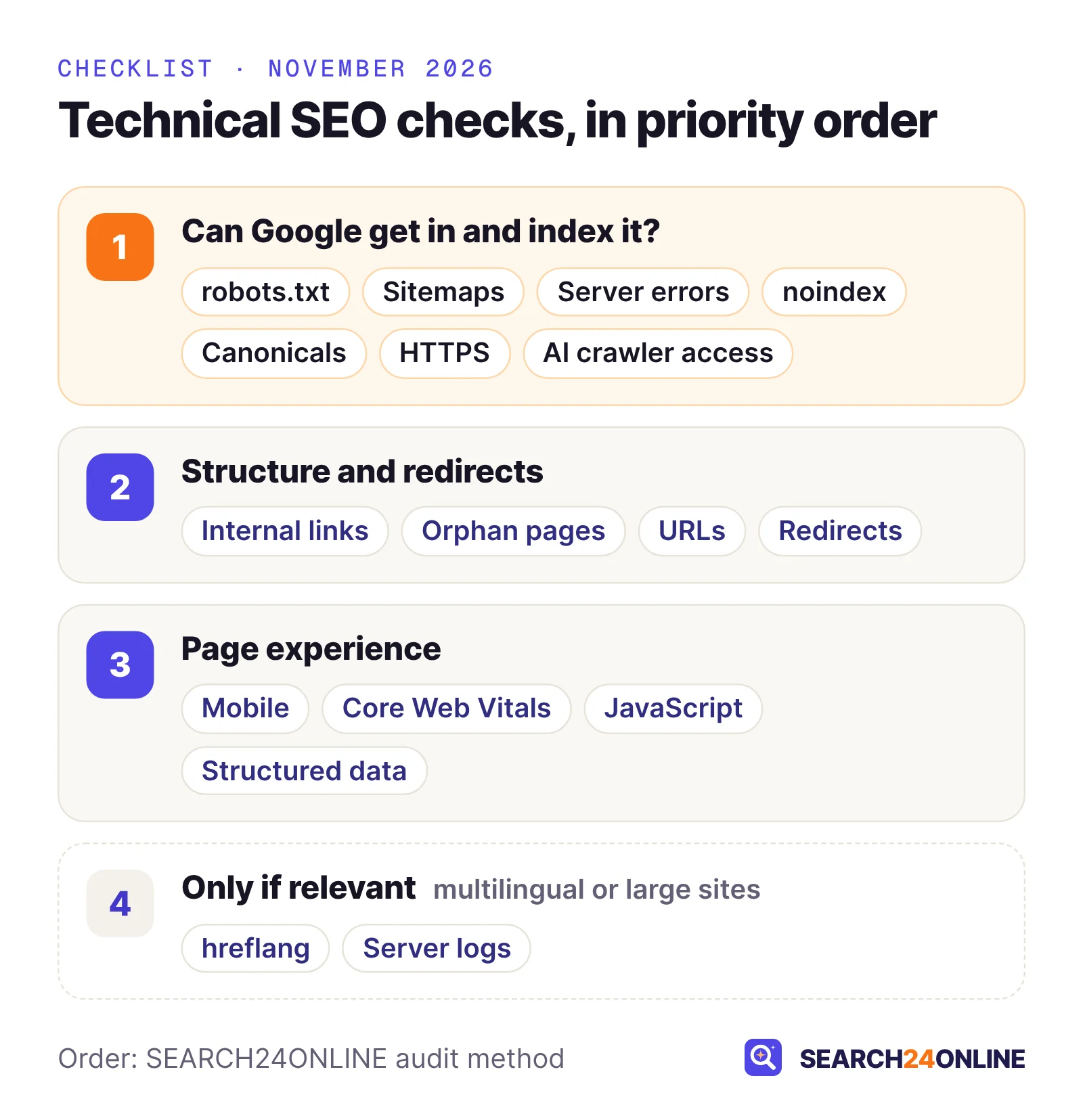
One caveat: this list covers whether Google can reach and read your site, not whether your content deserves to rank. Content, intent and links belong to a full SEO audit, which starts with these checks.
Tier 1: Can search engines crawl your pages?
Crawling means a search engine fetching your pages. If Googlebot cannot fetch a page, nothing else on this list matters for it.
1. robots.txt doesn’t block anything important
How to check: open yourdomain.com/robots.txt in a browser. Pass: the file loads (or returns a plain 404) and no Disallow line covers your service, product or blog folders, or the CSS and JavaScript files pages need to display.
Why it matters: Google’s robots.txt documentation treats a missing file (any 4xx except 429) as no crawl restrictions, which is fine. A server error is not: if robots.txt returns a 5xx error, Google stops crawling the whole site for the first 12 hours, then relies on its last cached copy for up to 30 days. Google generally caches the file for up to 24 hours, so fixes aren’t instant, and ignores anything past 500 KiB. The classic failure we find in audits is a staging site’s Disallow: / copied to the live site during a relaunch.
A sensible starting file for a typical WordPress site looks like this:
User-agent: *
Disallow: /wp-admin/
Allow: /wp-admin/admin-ajax.php

Sitemap: https://www.example.com/sitemap.xml
2. Your XML sitemap lists only pages you want indexed
How to check: submit the sitemap in Search Console’s Sitemaps report, confirm it processed without errors, then spot-check its URLs. Pass: full absolute URLs, each live (no redirects or 404s), indexable and the preferred version.
Why it matters: Google’s sitemap guide caps each file at 50,000 URLs or 50MB uncompressed, says it ignores <priority> and <changefreq>, and uses <lastmod> only when it is “consistently and verifiably” accurate. A sitemap full of redirected and noindexed URLs sends mixed messages. Tip: filter the Page indexing report to “All submitted pages” to see how many sitemap URLs are actually indexed.
3. Important URLs don’t return errors
How to check: in the Page indexing report, open the reasons “Server error (5xx),” “Redirect error” and “Not found (404).” Pass: none of your key pages appear, and every 404 is a page that genuinely no longer exists and has no close replacement.
Why it matters: a page that errors when Googlebot visits cannot be indexed, and recurring 5xx errors usually mean an overloaded host or a faulty plugin. Google says sites under 500 pages probably don’t need this report and suggests site: searches instead; inspecting your 10 key URLs also works.
4. Page HTML stays under 2MB
How to check: in your browser’s developer tools, open the Network tab, reload, and look at the uncompressed size of the main document. Pass: well under 2MB. Why it matters: Google’s Googlebot page, updated February 2026, says it crawls only “the first 2MB” of a supported file. Normal pages are far below that, but some page builders inline huge scripts, and content past the cutoff is never seen.
Tier 1: Are the right pages in Google’s index?
Indexing is Google storing a page so it can appear in results. Google’s help page is blunt: “You should not expect all URLs on your site to be indexed, only the canonical pages.” The goal is that pages that earn you customers are in and the junk is out. Important pages missing from the index is one of our most frequent findings. Our guide to why a website is not showing up on Google explains every status and fix, so this section sticks to the checks.
5. Your key pages are indexed
How to check: paste each of your 10 most important URLs into the URL Inspection bar at the top of Search Console. Pass: “URL is on Google.” The default result reflects the last indexed version; Test live URL checks the page as it is now.
6. No stray noindex tags
How to check: in URL Inspection, read the “Indexing allowed?” line, or search the page source for “noindex.” Check the Page indexing reason “URL marked ‘noindex’” for pages that shouldn’t be there. Pass: no page you want found carries noindex. Why it matters: a leftover noindex from a redesign, or a CMS setting that discourages search engines, can drop a whole site unnoticed for weeks.
Blocking a page in robots.txt stops crawling, not indexing: Google’s Googlebot page says a blocked URL can still appear in results. To keep a page out, use noindex and leave it crawlable, or Google never sees the tag. Don’t toggle noindex with JavaScript either: Google may skip rendering once it sees the tag.
7. Canonical tags agree with Google
How to check: URL Inspection shows a “User-declared canonical” and a “Google-selected canonical.” Compare them on your key pages, and check the Page indexing reason “Duplicate, Google chose different canonical than user.” Pass: they match, and each page’s canonical points to itself unless it really is a copy.
Why it matters: Google’s canonicalization guide calls redirects and rel="canonical" strong signals and sitemap inclusion a weak one. It also advises against using robots.txt or noindex to pick a canonical. A pattern we see often: a plugin setting that points every canonical at the homepage, telling Google the service pages are duplicates.
8. Duplicates and soft 404s are under control
How to check: try your key pages with and without www, with and without a trailing slash, and with a tracking parameter added. Then open the “Duplicate without user-selected canonical” and “Soft 404” reasons. Pass: every variant redirects to, or canonicalizes to, one URL. A soft 404 is a page that shows a “not found” message but doesn’t return a 404 status code. Empty search results, discontinued products and expired listings are the usual culprits.
Tier 1: Is the site secure and served from one version?
It is if every visitor and crawler lands on one HTTPS version with a valid certificate, and Search Console reports no security issues. These checks take ten minutes.
9. One HTTPS version, reached in one hop
How to check: type the four variants of your domain (http and https, with and without www) into a browser. Pass: all four reach the same HTTPS address in one permanent (301) redirect. Why it matters: Google prefers HTTPS pages over HTTP equivalents, but its canonicalization guide names exceptions such as an invalid certificate or an HTTPS page that redirects back to HTTP. Conflicting signals make Google guess.
10. Valid certificate, no mixed content
How to check: click the padlock icon for the certificate’s expiry date. Then open the developer console on a few templates and look for “mixed content” warnings (files still loading over http). Pass: a valid certificate set to renew automatically and no warnings.
11. No security issues or manual actions
How to check: open the Security issues and Manual actions reports in Search Console. Pass: both reports show no issues. Either problem can suppress the whole site; the fixes are in our guide to site-wide flags.
Tier 1: Can AI search tools read your site?
Only if their crawlers are allowed in, both in robots.txt and at your firewall or CDN. AI assistants that search the web use their own crawlers, and a block, often accidental, keeps you out of their answers. Sites not set up for AI search have become a recurring audit finding.
12. AI search crawlers are allowed in robots.txt
How to check: read your robots.txt for named AI crawlers and blanket rules. Pass: search crawlers are allowed, and any training-crawler blocks are deliberate. Why it matters: OpenAI’s crawler documentation separates OAI-SearchBot (search) from GPTBot (model training) and says sites that opt out of OAI-SearchBot will not be shown in ChatGPT search answers, apart from navigational links. Changes take about 24 hours to apply. Our guide to AI crawlers lists every major bot with copy-ready rules.
13. Your CDN or firewall doesn’t block them
How to check: look at your CDN or security plugin’s bot settings, and search your server logs for the crawler names. Pass: AI search crawlers receive 200 responses, not 403s or challenge pages. We regularly find sites whose robots.txt says yes while a bot-protection setting says no.
14. Search Console includes you in generative AI features
How to check: find the Search generative AI control in Search Console. Pass: your site is included, not excluded. Google’s AI optimization guide lists this as a requirement on top of being indexed and eligible for a snippet. The same guide says Google Search doesn’t use llms.txt files and that no special AI text files or markup are needed, so llms.txt can wait until the checks above pass.
Read robots.txt for OAI-SearchBot, PerplexityBot and blanket Disallow: / rules, check the Search generative AI setting, and confirm a service page’s main text appears in its page source. That covers most AI access problems we find.
Tier 2: Does your structure lead crawlers to the pages that matter?
On most sites we audit, not well enough. Poor internal linking is one of our most consistent findings: key pages buried four clicks deep, blog posts that never link to the service they describe, redirect chains from past redesigns. None of this blocks Google, but it splits signals and makes your best pages look unimportant.
15. Key pages are within three clicks of the homepage
How to check: sort a free crawler’s results by click depth, or count clicks by hand to your five most valuable pages. Pass: three or fewer (our rule of thumb, not a Google number). Search Console’s Links report should show your main service pages among the most linked internal pages, not trailing your privacy policy.
16. No orphan pages
How to check: compare the URLs in your sitemap with the URLs a crawler finds by following links. Pass: every page in the sitemap is linked from at least one other page. A page that only the sitemap knows about gets crawled, but it looks unimportant.
17. Navigation uses real links
How to check: in the page source, menu and category links should be <a href="…"> elements. Pass: no menus built only from buttons or click handlers. Google’s JavaScript guide says it can discover links only when they are <a> elements with an href attribute.
18. URLs are clean and stable
How to check: scan the crawler’s URL list. Pass (our view): lowercase, readable words separated by hyphens, no session IDs, one URL per piece of content. Don’t rename URLs that already rank just to tidy them.
19. Redirects are permanent, single-hop and not linked internally
How to check: the crawler’s redirect report lists chains and internal links that point at redirected or broken URLs. Pass: moved pages use a single 301 to the closest equivalent, and internal links point straight at final URLs. A typical chain after two redesigns runs http to https to www to trailing slash, four hops where one would do. If you are planning a redesign, our migration checklist covers redirect mapping in detail.
Tier 3: Does the site work well on a phone?
It has to. Google’s Googlebot documentation says that for most sites Google Search primarily indexes the mobile version, and most crawl requests come from the mobile crawler. What isn’t on your mobile page effectively isn’t on your site.
20. The mobile page carries the same content
How to check: compare your key pages on a phone and on desktop, section by section; the URL Inspection live test also shows a screenshot. Pass: the same text, reviews, links and structured data on both. A common finding is a mobile theme that drops the reviews or half the service description.
21. Core Web Vitals pass on real-user data
How to check: run key templates through PageSpeed Insights and read the field data section at the top, then check Search Console’s Core Web Vitals report for groups of failing URLs. Pass: PageSpeed Insights says a page passes when the 75th percentile of all three metrics is Good:
Field data covers real visits over the previous 28 days. When a page lacks enough visits, PageSpeed Insights falls back to data for the whole origin, and a small site may have no field data at all.
Lab data in PageSpeed Insights comes from one simulated page load on one device with fixed network conditions, so it can differ from what visitors experience. The Core Web Vitals assessment uses real visits. Fix what real users experience; don’t chase a perfect lab score.
22. Fix slow templates, not single pages
Speed problems usually live in a template, such as an oversized hero image on every service page. Our view: speed is rarely why a strong page fails to rank, so fix templates rated Poor and stop once they pass. Our Core Web Vitals guide explains each metric and its usual fixes.
Tier 3: Can crawlers see your content without running JavaScript?
Google can, eventually; many other crawlers cannot. Google’s JavaScript guide describes three phases (crawling, rendering, indexing) and says a page may wait in the render queue for a few seconds, “but it can take longer.” It also notes that “not all bots can run JavaScript,” which matters now that AI crawlers read the web too.
23. Main content is in the raw HTML
How to check: open View page source (not the inspector) on a service page and search for a sentence from its main text. Pass: the text, headings, title and canonical tag are all there. If the source is an empty shell filled by scripts, ask your developer about server-side rendering or pre-rendering, which Google calls “still a great idea.”
24. Google’s rendered version matches what visitors see
How to check: run Test live URL in URL Inspection, then View tested page, or use the Rich Results Test; both show the rendered HTML, which is what Google’s JavaScript guide suggests checking. Pass: the rendered HTML contains your content and links, and the screenshot shows the real page, not a spinner.
Tier 3: Is your structured data valid and still worth having?
Structured data is code, usually JSON-LD, that labels what a page is about: your business, a product, an article. It can make pages eligible for rich results such as review stars. Missing structured data is a recurring audit finding, especially basic Organization or LocalBusiness markup.
25. Markup validates without errors
How to check: run one URL per template through the Rich Results Test, then watch the structured data reports in Search Console after changes. Pass: no errors on the types you use, and the markup describes content that is actually visible on the page, on mobile as well as desktop.
26. Your expectations match what Google shows today
Google’s documentation changelog records that the FAQ rich result stopped appearing in Google Search starting May 7, 2026, so don’t add FAQ markup expecting those expandable results. Google’s AI optimization guide adds that structured data isn’t required for its generative AI features and there is no special schema to add, though it still recommends markup for rich results. Our schema markup guide covers which types are worth adding for a small business.
Tier 4: Which checks only matter for some sites?
hreflang matters only if you publish pages for different languages or countries, and server logs mainly for large sites or stubborn crawling problems. If neither applies, skip ahead.
27. hreflang tags are complete and reciprocal
How to check: view the source of a page in each language, or use a crawler that reports hreflang errors. Pass, per Google’s localized versions guide:
- Each version lists itself and every other version. If two pages don’t point to each other, Google ignores the tags.
- Language codes follow ISO 639-1 and region codes ISO 3166-1 Alpha 2, and a region code never stands alone. That makes
en-gbcorrect anden-ukwrong. - An
x-defaultversion catches visitors whose language matches none of your pages. - One method is used consistently: HTML tags, HTTP headers or the sitemap, which Google treats as equivalent.
28. Googlebot spends its visits on pages that matter
How to check: download raw access logs from your hosting panel and filter by user agent. Look at which URLs Googlebot requests most, which status codes it gets, and whether filter or parameter URLs eat its visits. Pass: most crawling lands on real pages that return 200.
29. The bots in your logs are real
Before drawing conclusions, verify the crawlers. Google’s Googlebot page warns that its user agent “is often spoofed by other crawlers” and recommends a reverse DNS lookup or matching the IP against Google’s published ranges; OpenAI publishes IP lists too. Our AI crawler guide shows simple log commands for spotting AI bots.
30. Re-run the blockers after every change
The last item is a habit. Redesigns, new themes, plugin updates and host moves are when blockers reappear, so re-run Tier 1 after each one. Prefer a list made for your own site? Our free SEO + GEO report checks robots.txt, the XML sitemap, indexability, canonicals, broken links, HTTPS, mobile Core Web Vitals, AI crawler access and structured data. It ranks every issue from critical to low.
Common questions
How often should I run a technical SEO check?
Do a full pass once or twice a year and after every redesign, migration or major plugin update, when most technical problems appear. In between, a monthly 15-minute look at Search Console’s Page indexing, Core Web Vitals and Security issues reports catches most new problems.
Can I do a technical SEO check without paid tools?
Yes, for most small and mid-sized sites. Search Console, PageSpeed Insights, the Rich Results Test and your browser’s page source cover nearly every item here. A free crawler handles internal links, redirects and orphan pages; paid tools mainly add scale.
Will fixing technical SEO issues improve my rankings?
Fixing technical issues removes barriers, but it does not make a page more relevant than its competitors. If a blocker such as a stray noindex was keeping key pages out of Google, the effect can be large; otherwise gains come mostly from content and links. No one can promise a ranking.
What is the difference between a technical SEO checklist and an SEO audit?
A technical checklist asks whether search engines can reach, index and render your pages. A full SEO audit also judges content, search intent, pages competing for the same keyword, backlinks and local signals, then ranks findings by business impact.
Should I block AI crawlers in robots.txt?
Block training crawlers if you object to model training, but think twice about blocking AI search crawlers. OpenAI says sites that opt out of OAI-SearchBot will not be shown in ChatGPT search answers, apart from navigational links. The two use separate names, so you can block one and allow the other.
Sources
- Google Search Central: How Google interprets the robots.txt specification
- Google Search Central: Build and submit a sitemap
- Google Search Console Help: Page indexing report
- Google Search Console Help: URL Inspection tool
- Google Search Central: How to specify a canonical URL with rel="canonical" and other methods
- Google Search Central: Googlebot
- Google for Developers: About PageSpeed Insights
- Google Search Central: Understand JavaScript SEO basics
- Google Search Central: Tell Google about localized versions of your page
- Google Search Central: Optimizing for generative AI features in Google Search
- Google Search Central: Latest Google Search documentation updates
- OpenAI: Overview of OpenAI crawlers
Get this checklist run on your own site — free.
We’ll analyze your website, from robots.txt and indexability to Core Web Vitals and AI crawler access, create your SEO + GEO report and give you password-protected dashboard access to view it within 24 hours.
Free · No obligation · We only review your public pages.