
How to Optimize Your Google Business Profile, Step by Step
Every section of the profile, in the order we work through it, checked against Google’s help center and guidelines as they read in November 2026, including what happened to Q&A and chat and the mistakes that get profiles suspended.
Key takeaways
- Optimizing a Google Business Profile means verifying it, filling every field accurately within Google’s guidelines, and keeping it active with reviews, replies, photos and posts. In our experience, the name, primary category and location are the decisions that matter most.
- Google allows one primary category plus up to 9 more, a description of up to 750 characters, and a business name that must match your real-world name, with no added keywords, taglines or locations.
- Public Q&A is being phased out for an AI-powered Ask feature in Google Maps, per a Google product specialist in December 2025. Google’s built-in chat ended on July 31, 2024.
- Track results with the Performance report, UTM tags on the website link, and the Google Analytics link, which shows six months of profile metrics.
On this page
What does an optimized Google Business Profile look like?
It is verified, accurate in every field, as complete as Google allows for your category, and visibly active. The profile is a set of facts Google checks against the real world, and most of the work is getting those facts right, then keeping them right.
As our complete local SEO guide explains, Google weighs relevance, distance and prominence. You can’t move closer to every customer, so profile work goes into relevance (does it clearly say what you are?) and prominence (reviews, photos, activity). Getting into the three-business map block is its own topic, covered in how to rank in the Google map pack.
Which profile features have changed or disappeared?
The public Q&A list, Google’s own chat and call history are gone or being replaced, so skip older advice about them. Recurring posts and a Google Analytics link are worth using instead.
| Feature | Status, November 2026 | What to do |
|---|---|---|
| Public Q&A | Being replaced by an AI-powered Ask feature in Google Maps; the Q&A API is deprecated | Answer the questions in your dashboard; make sure your profile, website and reviews answer common questions |
| Google chat (Business Messages) | Ended July 31, 2024 | Add a WhatsApp link or a texting number in the Chat field, where offered |
| Call history | Ended July 31, 2024; the call button now uses your own number | Use the Calls metric in Performance, or call tracking on your website |
| Scheduled and recurring posts | Available: schedule a date, or repeat weekly, monthly or on a custom schedule | Set up a recurring post for anything you’d otherwise forget |
| Google Analytics link | Available from GA4 Admin; last six months of profile metrics | Link it so profile numbers sit next to your site data |
What replaced Q&A
Google product specialist Dan Boguslavsky announced the change in the Business Profile help forum in December 2025, as Search Engine Roundtable reported. Customers can now “ask their question directly in Google Maps and get an updated, instant answer based on your answers and relevant reviews.” Owners now answer aggregated questions, and those answers are reused for similar ones. The same report notes that Google had already deprecated the Q&A API that third-party tools used to read and post questions.
An AI now answers customer questions about your business from your profile and reviews. If your hours or services are missing or wrong, so is the answer. Google’s “Edit your Business Profile” page still lists Q&A, and the product specialist said published answers “may be shown in Maps,” so answer whatever appears in your dashboard.
Step 1: How do you claim, verify and secure the profile?
Search for your business on Google or Maps, claim the profile (or create one), then complete whichever verification method Google offers. You don’t get to pick. Google says methods “are automatically determined by Google and can’t be changed,” and depend on your business type, public information, region and business hours.
The methods Google lists are phone or text, email, live video call and postcard, plus a video recording for eligible businesses, which Google recommends. Postcards and live video aren’t offered to every business. Some profiles verify instantly, for example through Search Console or bulk verification.
What to expect
- Timing: Google says verification reviews take up to 5 business days. Postcard codes usually arrive within 14 days and expire after 30.
- Live video: calls happen only during your business hours. Google asks you to show outside signage or a street sign, your products or branded equipment, and something only staff can access, such as a cash register.
- Re-verification: Google’s help center says changing your name after verification may require verifying again, and moving to a new address does. Plan those changes. Before any video, make sure your signage, tools or vehicle show the same name you’re claiming.
Keep ownership in-house
Profiles have owners and managers. The difference matters when an account goes wrong: Google’s help center says removing an owner’s account removes all the locations that user owns, while suspending a manager’s account doesn’t affect the locations. Our view: make a company Google account you control the primary owner, protect it with 2-Step Verification, and add agencies and staff as managers. In audits we regularly meet owners locked out of their own profile because a former employee or agency still owns it.
Step 2: What name, categories and location should you use?
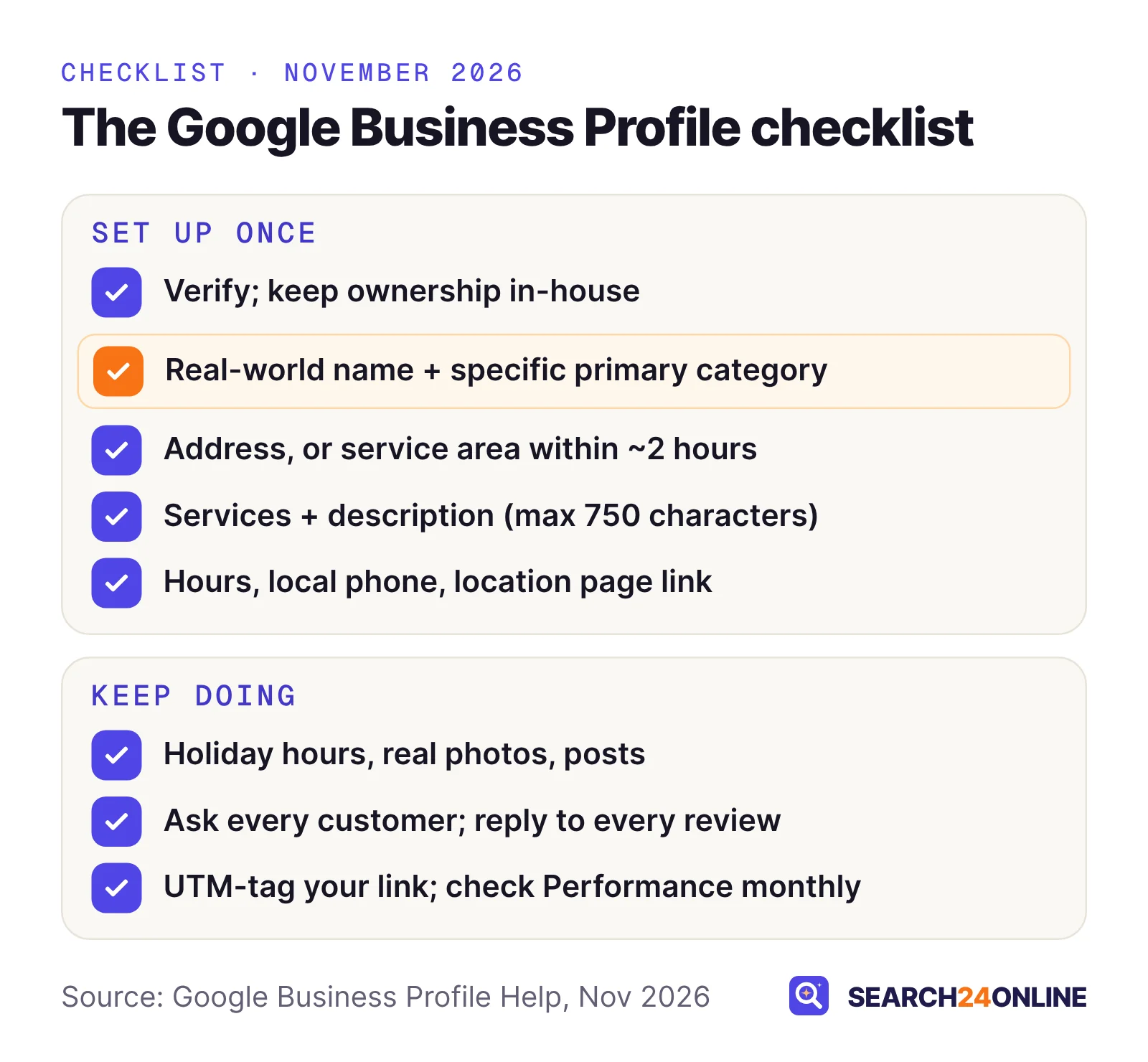
Use your real-world name, the most specific primary category that describes what the business is, and either your staffed address or a realistic service area. These decide which searches the profile can appear for, and they are where most suspensions start.
The business name
Google’s guidelines say your name “should reflect your business’s real-world name, as used consistently on your storefront,” website and stationery. They specifically bar marketing taglines, store codes, phone numbers, URLs, hours, product or service descriptions and location details. All-caps names aren’t allowed.
The rule gets broken because keyword-stuffed names often rank. Whitespark’s September 2026 study of more than 1.4 million listings across 17 industries found that business names containing the searched keyword reached the top three local results more often in most industries. In travel and tourism, exact-match names reached the top three 29.54% of the time, against 6.05% for names with no keyword. Names that start with the keyword did better in 15 of 16 industries with enough data. That is correlation, not proof.
“Smith & Co Law” becoming “Smith & Co Car Accident Lawyer Houston” breaks the guidelines. Whitespark notes that competitors and the public can report it, and Google can strip the keywords, taking the ranking gain with them. Google can also suspend profiles that break its guidelines. The legitimate version is a real rebrand that appears on your signage, website and paperwork.
If you rebrand, Google says a minor change that keeps the proper nouns, services and category can be edited in place; other name changes require closing the profile and creating a new one.
Categories
You get one primary category plus up to 9 more. Google’s guidelines say to use the fewest categories that describe the core business and make them as specific as possible. The test is whether the category completes the sentence “This business IS a…”. Google’s own example: a motel with a pool picks “Motel,” not “Hotel” or “Swimming Pool.” Google adds broader related categories automatically, so skip generic ones.
Our research method: search your main service phrases in Google Maps from your own area and note the category label under the businesses that rank. Then pick the most specific one that is truthfully what you are. A common situation: a family dental practice whose most valuable work is orthodontics. Keep “Dentist” as primary and add a secondary category only for a department that really exists, such as an orthodontist on staff.
Address or service area
A storefront shows its real address. P.O. boxes and remote mailboxes aren’t accepted, and virtual offices are ineligible. A co-working space only qualifies with clear signage, staff on site and in-person customer service during business hours.
Google’s guidelines state: “If you’re a service-area business, you should hide your business address from customers.” Set a service area instead, which Google says shouldn’t extend farther than about 2 hours from your base. A hybrid business that receives customers at a staffed location can show the address and set a service area. Ranking in towns where you have no office is a separate challenge; see how to rank in cities where you don’t have an office.
One business, one profile: Google says “there should only be one profile per business.” Separate locations with their own staff each get a profile; branch setup is covered in multi-location SEO.
Step 3: Which details, links and contact options should you fill in?
Every field Google offers for your category, as factually as possible. Each gives Google, and the AI answering questions in Maps, something concrete to match.
Services, products and description
- Services and products: Google lists both as “limited availability,” meaning they depend on your category. Add every service you actually sell, named the way customers search for it. Retailers in the US, Canada, the UK and Ireland can add in-store products, which must follow Google’s Shopping ads policy; regulated products such as alcohol, tobacco and unapproved medications aren’t allowed.
- Description: up to 750 characters. Google wants it to describe your services, products, mission and history, without links, promotions, prices or sales language. Lead with what you do and where, then what sets you apart: certifications, specialties, languages spoken.
- Attributes: the extra details Google offers for your category. Answer every one that applies; they are exactly the kind of detail a customer asks Maps about.
- Opening date: a new business can enter a date up to a year ahead, and Google shows it 90 days before opening.
In audits we often find a profile listing ten services while the website has one generic services page. The profile then claims things the site never explains, so neither ranks well for them. Give your main services their own pages and keep the names consistent between profile and site.
Hours
List your regular customer-facing hours, and set special hours for holidays and events before they arrive. Google’s guidelines say businesses with varied hours, such as event venues, schools and movie theaters, shouldn’t list hours at all. Extra hours, such as delivery or a drive-through, generally sit within the main ones. Seasonal businesses mark themselves temporarily closed off-season.
Phone, website, chat and booking
- Phone: a number you control that reaches this location. Google prefers a local number to a central call center and allows up to 2 additional numbers. Redirecting and premium-rate numbers aren’t allowed.
- Website: the page for this location. Multi-location businesses that point every profile at the homepage waste the link. URLs that redirect elsewhere, including to social media pages, aren’t allowed.
- Chat: Google ended its built-in chat on July 31, 2024. Where offered, the Chat field now takes a WhatsApp link or a phone number that accepts texts. Only add it if someone will answer.
- Booking: Google points businesses to Reserve with Google partner providers where they are available. Bookings show up in your Performance report only when they are managed through a provider.
Step 4: Which photos and posts are worth your time?
Real photos of your premises, team and work, plus a short post every week or two. Photos answer what people wonder before they call: is this place real, and can I find the entrance? Posts show the business is active.
Photos
Our view: start with the exterior from the street (it helps customers find you, and it is the same evidence verification asks for), then the interior, the team, and finished work. A roofer’s before-and-after shots beat any stock image. Add photos as things change rather than fifty on day one, and keep the logo and cover photo current.
Posts
Google offers three post types. An Update can carry a photo, a video and an action button. An Offer needs a title, dates and times and can include a coupon code. An Event needs a title and start and end dates; without times it shows as lasting 24 hours on those dates.
- Posts older than six months are archived unless they have a date range.
- You can schedule posts and repeat them weekly, monthly or on a custom schedule.
- Posts with a phone number in the text may be rejected unless Google can verify the number belongs to the business. Use the call button instead.
- Businesses in regulated industries, such as alcohol, gambling or financial services, can post but can’t mention the regulated products.
Our view: posts are conversion content, not a ranking lever. A seasonal offer or new service gives a customer comparing three businesses a reason to pick you; daily filler doesn’t.
Step 5: How should you handle reviews and replies?
Ask every customer the same way, never reward anyone for a review, and reply to every review with something specific. How to build a steady flow of requests, with scripts and timing, is covered in how to get more Google reviews without breaking Google’s rules. Here are the rules that decide whether reviews survive.
What Google prohibits
- Incentives in exchange for posting any review, positive or negative, or for removing a negative one. Google says “fake engagement is not allowed and will be removed.”
- Discouraging negative reviews, or selectively soliciting positive ones. In our reading, that covers “review gating”: sending happy customers to Google and unhappy ones to a private form.
- Reviews based on a conflict of interest, including current or former employees, contractors and family.
- Requiring staff to collect a set number of reviews or reviews with specific content.
- Posting content on a competitor’s listing to damage its reputation.
How to reply
Mention the job or visit where you can: “Thanks, Maria, glad the water heater swap went smoothly on Saturday.” For a complaint, acknowledge it, state what you’ve done or offer a direct line, and keep it short. Google’s guidelines let you post your own contact details in a reply, but not ask the reviewer for personal or confidential information. In healthcare, law and other confidential fields, don’t confirm in public that the reviewer was a patient or client.
Reviews now do double duty. The Ask feature in Maps answers from “relevant reviews” as well as your own answers, so a detailed review mentioning a service, a neighborhood or wheelchair access becomes part of how the AI describes you. Asking customers to mention what you did, without scripting their words, is fair.
Step 6: How do you track what the profile delivers?
Use three tools together: the profile’s Performance report, UTM tags on the website link, and the Google Analytics connection.
The Performance report
Open your profile and select Performance (verified profiles only). The metrics are narrower than they look:
- Views count unique visitors to your profile on Search and Maps. Google counts a person at most once a day, and only a limited number of times across devices.
- Searches show the terms that led people to your profile. They update at the start of each month and can take up to 5 days to appear.
- Interactions include calls (button clicks, so a phone number must be listed), direction requests (adjusted for cancellations and spam), website clicks, messages, bookings made through a provider, menu clicks, product views, and offer views and clicks.
Tag the website link
Without a tag, profile visits blend into your other Google traffic in Analytics. Google Analytics says you should always set utm_source, utm_medium and utm_campaign, and that values are case sensitive, so pick lowercase and stick to it. The website field on a single-location profile would look like this:
https://www.example.com/?utm_source=google&utm_medium=organic&utm_campaign=gbp-listing
For several locations, link each profile to its own page and add &utm_content= with the branch name. We use organic as the medium because the visits are unpaid Google traffic; the campaign value is what lets you pick them out. Our reading of the guidelines: a UTM tag adds labels to the same URL rather than redirecting, so it doesn’t conflict with Google’s rule against redirecting links.
In Google Analytics, go to Admin, then Product links, then Google Business Profile links. You need Editor or Administrator access to the property and Owner or Manager access to the profile. A Google Business Profile report collection then appears, with the last six months of interactions, calls, directions, website clicks and bookings. With several profiles linked, it shows totals only and can’t filter by location.
Watch three things monthly: calls and direction requests, the closest thing to leads; the search terms, to see whether people find you for what you sell or only your name; and tagged sessions that reach a contact page. If AI assistants are also sending visits, our guide to seeing ChatGPT and other AI traffic in GA4 shows how to separate them.
Why do profiles get suspended, and how do you avoid it?
Profiles get suspended when Google decides they break its guidelines or policies; Google says it “may suspend or disable Business Profiles that don’t follow our guidelines.” Google’s help page lists no triggers. From the guidelines and the profiles we’re asked to recover, the usual causes are:
- Keywords, cities or taglines added to the business name.
- A virtual office, P.O. box or mailbox used as the address.
- A service-area business showing a home address customers never visit.
- Duplicate profiles for the same business, or one per service.
- A website or phone number that redirects somewhere else, or a call center number.
- Fake, incentivized or employee reviews.
- Business types that aren’t eligible, such as age-restricted businesses (alcohol, cannabis, weapons) set up as service-area businesses without a storefront.
Prevention is mostly about edits: change one major field at a time, keep records proving each change (a lease, new signage), and expect name or address changes to trigger re-verification.
If it happens
Check whether it’s the profile or your whole account: an account restriction blocks creating or claiming profiles and is appealed first, from your account page. Then:
- Fix the cause firstCorrect whatever broke the guidelines before appealing, or you waste your only attempt.
- Gather matching documentsGoogle lists business registration, a business license, tax certificates and utility bills. The business name and address must match the profile.
- Appeal once, in the appeals toolSelect the profile and the decision, upload your evidence and explain briefly. Google says appeals can only be submitted once.
- Wait, and don’t start overGoogle emails its decision. Don’t create a new profile for the same business; Google tells you explicitly not to. If the appeal is denied, Google says it may be able to do an additional review.
The other half of local presence is a website that confirms everything the profile says. Our free SEO + GEO report analyzes your website, including local and trust signals such as name, address and phone consistency, click-to-call and business schema, and gives you private dashboard access within 24 hours.
Common questions
Can I add keywords to my Google Business Profile name?
Not unless they are part of your real business name. Google’s guidelines say the name must match what you use on your storefront, website and stationery, and they bar taglines, service descriptions and location details. A keyword belongs in the name only after a real rebrand that also appears on your signage and paperwork.
How long does Google Business Profile verification take?
Google says verification reviews take up to 5 business days once you have completed your method. If you are offered a postcard, most codes arrive within 14 days and expire after 30 days. Some profiles verify instantly, for example through Search Console or bulk verification.
Can customers still ask questions on my Google Business Profile?
Less and less through the old public Q&A list. A Google product specialist said in December 2025 that it was being replaced by an AI-powered Ask feature in Google Maps that answers from your answers and relevant reviews. Owners can still answer questions in the Q&A section of the profile dashboard, and those answers may still be used in Maps.
How often should I update my Google Business Profile?
Check it monthly and update it whenever something changes. Our routine: special hours before every holiday, new photos when something changes, a post every week or two, and a monthly look at reviews and Performance.
Can I get a suspended Google Business Profile back?
Often, if the suspension was a mistake or you fix the violation first. Submit an appeal through the Business Profile appeals tool with documents such as a business license or utility bill that match the name and address on the profile. Google lets you submit each appeal only once and says not to create a new profile for the same business.
Sources
- Google Business Profile Help: Guidelines for representing your business on Google
- Google Business Profile Help: Verify your business on Google
- Google Business Profile Help: Edit your Business Profile
- Google Business Profile Help: Create and manage posts on your Business Profile
- Google Business Profile Help: Prohibited and restricted content
- Google Business Profile Help: Fix suspended or disabled profiles
- Google Business Profile Help: Understand your Business Profile performance and insights
- Google Business Profile Help: Changes to Google Business Profile chat and call history
- Google Analytics Help: Connect Google Business Profile to Google Analytics
- Google Analytics Help: URL builders, collect campaign data with custom URLs
- Search Engine Roundtable (December 15, 2025): Google removing Q&A feature in Google Maps for AI-powered Ask button
- Whitespark (September 2026): How keywords in business names impact Google local rankings and AI
Does your website back up your Business Profile? Check it free.
We’ll analyze your website, including name, address and phone consistency, click-to-call and business schema, create your SEO + GEO report and give you password-protected dashboard access to view it.
Free · No obligation · We only review your public pages.