
How to See Traffic From ChatGPT and Other AI Assistants in GA4
GA4 now sorts visits from ChatGPT, Gemini and other assistants into their own channel. Here is where to find it, what it misses, how to build a sharper version with a regex, and how to tell whether those visits turn into customers.
Key takeaways
- To see ChatGPT and other AI assistant visits in GA4, open Reports > Acquisition > Traffic acquisition and find the AI Assistant row. Google added that default channel on May 13, 2026, for visits whose referrer matches a recognized assistant.
- Clicks from Google’s own AI Overviews and AI Mode are excluded from that channel and counted as Organic Search. Search Console’s Generative AI performance report is where Google shows your visibility in those features.
- A custom channel group with a regex on Source gives you one channel per assistant, catches sources Google’s list may miss and, Google says, can be applied to older data.
- GA4 undercounts AI traffic: when no referral information arrives, the visit is counted as Direct, and people who read an answer and then search your name show up as organic.
- Traffic is not the result. Mark form submissions, calls and bookings as key events, then compare the AI Assistant key event rate with Organic Search.
On this page
Where do you find AI assistant traffic in GA4?
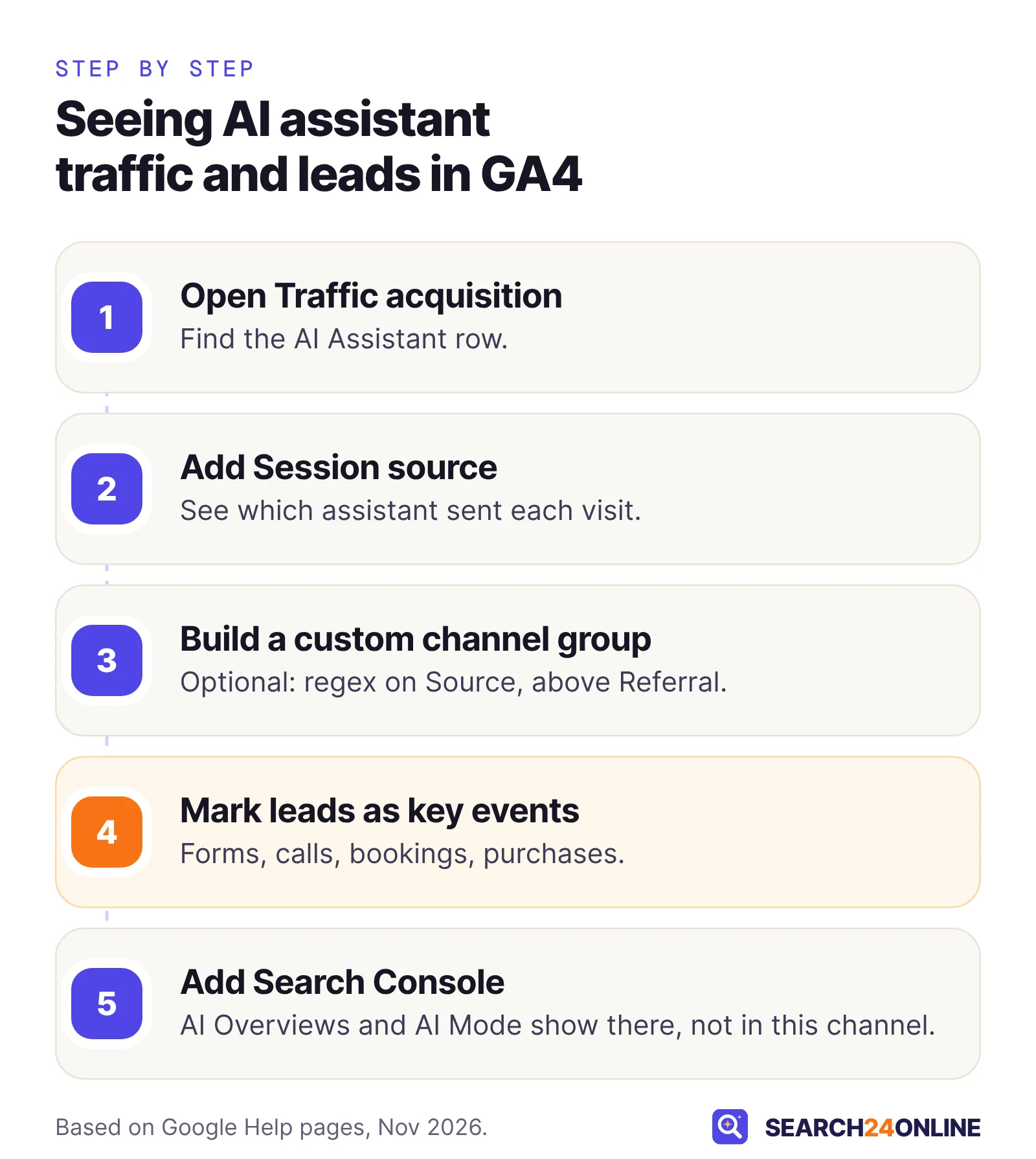
In the Traffic acquisition report, under a channel called AI Assistant. GA4 creates it automatically, so there is nothing to switch on. These steps follow Google’s Analytics Help pages as of November 2026.
- Open the reportIn GA4, click Reports, then Acquisition > Traffic acquisition. The table is grouped by session default channel group, which Google lists as the report’s default dimension.
- Find the AI Assistant rowIt sits alongside Organic Search, Direct and Referral. If it is missing, GA4 recorded no visits it recognized as coming from an assistant in your date range; widen the range before drawing conclusions.
- See which assistant sent each visitClick the plus icon next to the dimension drop-down and add Session source as a secondary dimension. You will see values such as chatgpt.com or gemini.google.com.
- Read the right columnsSessions and engaged sessions show volume and quality. Key events and session key event rate show whether those visits led anywhere, once key events are set up (covered below).
Google announced the channel in its GA4 release notes on May 13, 2026, describing it as a way to see how people discover your site “through chatbots like ChatGPT, Gemini, and Claude” and compare those clicks with other channels. When the referrer matches a recognized assistant, GA4 sets the medium to ai-assistant and the campaign to (ai-assistant), and the channel rule simply checks for that medium. A one-line definition is in our glossary.
What does the AI Assistant channel include, and what does it leave out?
It includes clicks from standalone assistants that GA4 recognizes by referrer, and it excludes Google’s AI features in Search. Google’s channel description says users arrive “from sources like ChatGPT, Gemini, Deepseek, Copilot, or Grok,” and that the channel “excludes Google’s AI Overviews and AI Mode.” Those two are written into the Organic Search definition instead.
Google does not publish the full list. The rule says the medium is set “if the referrer matches a list of AI Assistants,” but the Help page links no such list. So check where each source actually lands in your property.
| Visit type | Where GA4 puts it | What to check |
|---|---|---|
| Link clicked in ChatGPT, Gemini, Copilot, Claude, Deepseek or Grok | AI Assistant (Google names these in its channel description or release note) | Session source shows which one |
| Link clicked in Perplexity | Not named in the channel description; Perplexity appears in Google’s June 2026 Source Group note | Search Session source for “perplexity” and see which channel it falls under |
| Click from an AI Overview or AI Mode on Google | Organic Search | Search Console (see below) |
| AI click that arrives with no referral information | Direct | Direct sessions landing on deep pages |
| Assistant visits before May 13, 2026 | Wherever GA4 put them at the time, most likely Referral | A custom channel group, which applies to older data |
Two dates matter. The channel arrived on May 13, 2026, and Google’s release note does not say older visits were reclassified, so a trend line that starts in May may simply reflect the new label. Then, on June 11, 2026, Google added a Source Group dimension that tidies messy source values into platforms; Google says it “includes built-in grouping for emerging traffic sources like ChatGPT (OpenAI) and Perplexity.” It is filled in retroactively, and Google links it to cross-channel reporting in the Advertising section.
In Traffic acquisition, switch the main dimension to Session source / medium and type chatgpt, perplexity, gemini, copilot and claude into the search box one at a time. Any row with a medium other than ai-assistant, such as referral, is AI traffic the default channel missed. If you find some, build the custom channel group below.
How do you build a custom channel group for AI traffic?
Copy GA4’s default channel group, add channels that match AI sources with a regular expression (regex, a short pattern that matches many text values at once), and move them above Referral. Do this if you want each assistant as its own row, need history from before May 2026, or found AI sources outside the AI Assistant channel.
Google says custom channel groups “can be applied to your reports retroactively,” which the default AI Assistant channel is not described as doing. A standard property can have two custom groups, each with up to 50 channels (five groups on Analytics 360), and you need the Editor role or above.
Step by step
- Open Channel groupsGo to Admin, then under Data display click Channel groups.
- Copy the default groupClick Create new channel group. GA4 starts you from a copy of the default. Name it something clear, such as “Channels with AI detail”.
- Add the AI channelClick Add new channel and name it “AI assistants”. Click Add condition group, choose Source, choose “matches regex” and paste the pattern below. Click Save channel.
- Add per-assistant channels if you want themFor example a “ChatGPT” channel with Source matching
.*(chatgpt|openai).*. Put each one above the general AI channel so it gets first pick. - ReorderClick Reorder and drag your AI channels above Referral and above the copied AI Assistant channel, then click Apply. Google suggests this order and says you can also place them above Organic Search if needed.
- Save and use itClick Save group. In Traffic acquisition, pick your new group from the dimension drop-down, as the primary or secondary dimension.
Order matters: Google says traffic goes to “the first channel whose definition it matches” in the group’s current order. If Referral sits above your AI channel, a perplexity.ai visit that GA4 recorded as a referral never reaches it.
The regex, explained
This pattern covers the assistants Google names in its channel description and release note, plus Perplexity:
.*(chatgpt|openai|perplexity|gemini\.google|copilot|claude\.ai|deepseek|grok\.com).*.*at both ends means “anything before, anything after”. Google’s regex documentation says a GA4 expression without such characters returns only exact matches, so without themdeepseekwould not matchchat.deepseek.com.- The brackets and the
|pipes group the alternatives: chatgpt or openai or perplexity, and so on. Never leave a pipe at the very end; Google’s guide warns against it. \.is a literal dot. An unescaped dot means “any character”.- Short words such as
chatgpt,perplexityandcopilotcatch the domain and any plain tag;openaicatches older chat.openai.com links. - Full domains for Gemini, Claude and Grok avoid false matches with unrelated businesses that share those names.
Google notes that channel definitions are not case sensitive. Add other assistants, such as Meta AI or Mistral’s Le Chat, once they appear in your source report; Google advises updating the regex when the assistants you want to measure change.
The sample regex on Google’s custom channel groups page starts with ^.*ai, which matches any source ending in “ai”, such as an AI startup’s .ai blog that links to you. It also matches anything containing “gpt” and keeps patterns for Bard, a name Google no longer uses. It works, but it is loose; a named list like the one above is easier to audit.
You can also make a custom group your property’s primary channel group, but Google says data then populates with the new rules “from that point forward.” For analysis, selecting the custom group in reports is enough. Custom channel groups are not in the BigQuery export either.
How do you analyze AI traffic page by page in an exploration?
Build a free-form exploration filtered to AI sources, with landing pages as rows. Explorations are GA4’s custom analysis workspace, and this one shows which pages assistants send people to and whether those pages produce leads.
- Start the explorationClick Explore, then choose the Free form template.
- Add your variablesImport the dimensions Session source, Session default channel group and Landing page + query string, and the metrics Sessions, Engaged sessions, Key events and Session key event rate.
- Lay out the tableDrag Landing page + query string into Rows and Session source under it. Drag the four metrics into Values. Free-form tables take up to 5 row dimensions and 10 metrics.
- Filter to AI trafficAdd a filter on Session source, choose “matches regex” and paste the same pattern. Or filter Session default channel group to exactly AI Assistant if you only want Google’s classification. Filters combine with AND logic, so use one or the other.
- Set the date rangeChoose at least three months. AI referral volumes are small for most businesses, and a single month is mostly noise.
Explorations have a limit standard reports do not: Google says the data retention setting “only affects explorations and funnel reports.” Retention can be 2 or 14 months for event data on a standard property. If yours is set to 2 months, an exploration cannot look further back than that. You can change it under Admin > Data settings > Data retention.
Why does GA4 undercount traffic from AI assistants?
Because GA4 can only label a visit with the information that arrives with it. Google’s documentation is blunt: a session “is processed as direct traffic when no information about the referral source is available.” Any AI click that loses its referrer on the way lands in Direct, next to people who typed your address.
A click can lose that information in ordinary ways: privacy settings in browsers or websites can strip the referrer, some apps open links without one, and people copy a link and paste it later. Then there are those who never click: they read an answer that mentions you, then search your name or type your address.
Why ChatGPT is easier to see than most
OpenAI says ChatGPT “automatically includes the UTM parameter utm_source=chatgpt.com in referral URLs.” A UTM parameter is a tag in the link itself, so the source survives even when the referrer does not, as long as the full URL is kept. For other assistants, check your own Session source values rather than assuming they tag links the same way.
How to estimate what you cannot see
You will not get an exact number, but you can see the outline. Our view:
- Watch Direct traffic to deep pages. People rarely type the address of a specific guide or service page from memory. A rising number of Direct sessions starting on such pages, with no campaign behind it, is consistent with AI links losing their referrer.
- Watch branded searches. In Search Console, filter queries containing your business name. Branded growth while your other marketing is flat often reflects word of mouth, and AI recommendations are now part of word of mouth.
- Ask people. Add “AI assistant (ChatGPT, Gemini…)” to any “How did you hear about us?” field on forms and intake calls. It is the only measure that catches people who never clicked.
Google also notes that a direct visit following a referred visit will never override an existing referrer. So a buyer who first arrived from an assistant and later came back by typing your address can still be credited to the original source. For mentions inside answers that produce no click at all, such as in Copilot or Perplexity, see our guide to tracking your brand’s visibility in AI answers.
Why do AI Overviews and AI Mode clicks show up as organic search?
Because Google defines them that way. The GA4 Organic Search channel covers non-ad links in organic results, including Google’s AI Overviews and AI Mode, and the AI Assistant channel explicitly excludes them. Our understanding is that these clicks reach you from Google Search like any other result, so GA4 has nothing that would separate them.
Search Console does the same: Google says sites appearing in AI features “are included in the overall search traffic” in the Performance report, under the Web search type. Your AI Overview clicks are already in your organic numbers; you just cannot isolate them.
What the Generative AI performance report adds
What you can isolate is visibility. Search Console’s Generative AI performance report counts impressions: how many times links to your site were shown to a user in a generative AI feature on Google Search, meaning AI Overviews and AI Mode. Google says it rolled out to all websites worldwide as of August 31, 2026.
- Breakdowns: pages, countries, dates and devices, with a search type filter for text-based and multimodal searches (such as Google Lens).
- Exclusions: Search Labs experiments, and Discover, which has its own report.
- Missing entirely? Google says the report usually does not appear when a site has had too few impressions in these features. That is itself useful information.
Using the two together
Combine them by page. Take the pages with the most AI impressions in Search Console, then check GA4’s organic landing page data for the same pages and dates. If impressions rise while organic key events on those pages hold up, the AI feature is probably helping. If impressions rise and clicks fall, the answer may be satisfying people on Google itself.
Google says clicks from results pages with AI Overviews are “higher quality” and suggests tracking conversions in tools such as Google Analytics. Your own key event data is how to test that claim. What earns those appearances in the first place is covered in what Google says about AI Overviews and AI Mode.
How do you measure leads and sales from AI traffic?
Mark the actions that matter as key events, then read them by channel. A key event is GA4’s name for a conversion: a form submission, a phone number click, a booking or a purchase. Without them, the AI Assistant row shows only visits.
- Mark your lead eventsGo to Admin, then Data display > Events, and click the star next to each lead event. If the event does not exist yet, use Create event and turn on “Mark as key event”. Google says starring needs the Editor role or above; creating a new key event needs Marketer or above.
- Wait for dataGoogle says to allow up to 24 hours for key events to show in standard reports. Marking an event affects reports from that point on and does not change historic data.
- Read the AI rowIn Traffic acquisition, compare the AI Assistant row’s key events and session key event rate with Organic Search and Referral.
- Follow the pagesUse the exploration above to see which landing pages produced those key events.
- Close the loop in your CRMRecord the lead source in your customer system so you can see which AI-referred leads became paying customers. GA4 cannot see that part.
A standard property can have up to 30 key events, which is plenty for a lead-generation site. Our guide to measuring SEO ROI covers the full setup, including call tracking, lead values and the later sales stages, so we won’t repeat it here.
For most local and B2B businesses, AI Assistant sessions are a small slice of traffic, and one extra lead can double a month’s conversion rate. Look at quarters and treat any single month as a hint.
Our view: if AI visitors convert at least as well as organic visitors, the pages they land on deserve upkeep. If they convert far worse, check where they land before writing the channel off.
What do we usually find when we check a site’s AI traffic?
Mostly measurement gaps and ordinary SEO problems. Our team brings over 20 years of digital marketing experience and has served 500+ brands, and the same handful of issues explain most disappointing AI numbers.
No key events, so no answer
In audits we often find GA4 installed but no lead events marked, or a form event that fires on every page load of the thank-you page. The AI Assistant channel then shows sessions and nothing else, or inflated leads. Fix the events first and compare a month of GA4 leads with your inbox before trusting any channel comparison.
AI visitors landing on the wrong pages
A common situation: a regional HVAC company finds most of its AI-referred visits land on a five-year-old blog post about furnace noises, not its repair page. The post answers the question, so assistants link it, but its details are dated and it has no link to booking. Refresh it, link it to the service page and give it a clear next step: ordinary internal linking and content upkeep.
Landing pages that no longer exist
We also find AI-referred sessions landing on 404 pages, usually old URLs removed in a redesign without redirects. Add Page title to your exploration, look for your “page not found” title and redirect each dead URL to its closest live page.
No AI traffic at all
When a site gets no assistant visits, the cause is often upstream of analytics: important pages not indexed, or a firewall or robots.txt rule blocking the crawlers assistants use to find pages. Our explainer on AI crawlers and whether to block them covers the access side, and how to get mentioned in ChatGPT covers the content side. Our free SEO + GEO report analyzes your website, and you get password-protected dashboard access to view it within 24 hours.
What should you check every month?
A 15-minute routine is enough for most small businesses, run on the same day each month.
- AI Assistant sessions and key eventsTraffic acquisition, last full month against the previous quarter.
- New sourcesScan Session source for assistant names your regex does not yet include, and add them.
- Top AI landing pagesCheck your saved exploration for pages that gained or lost AI visits, and any 404s.
- Google AI visibilityCheck the Generative AI performance report for impressions by page, alongside organic clicks for the same pages.
- Direct and branded trendsDirect sessions to deep pages, branded queries and “How did you hear about us?” answers.
Report these as one short block. Our guide to what a monthly SEO report should include shows where it fits alongside organic leads and rankings. If you would rather have this tracked for you, our SEO + GEO services include AI visibility tracking on every plan; see pricing for what each covers.
Common questions
Does GA4 track ChatGPT traffic automatically?
Yes. Since May 13, 2026, GA4 puts visits whose referrer matches a recognized AI assistant into the AI Assistant channel, with the medium ai-assistant. To see whether those visits become leads, you still need to mark your form, call and booking events as key events.
Why is Google AI Overviews traffic not in the AI Assistant channel?
Because Google classifies clicks from AI Overviews and AI Mode as Organic Search. They are counted with your other Google clicks in Search Console under the Web search type, and Search Console’s Generative AI performance report shows how often your links appeared in those features.
Is Perplexity included in GA4’s AI Assistant channel?
Google does not say. Its channel description names ChatGPT, Gemini, Deepseek, Copilot and Grok, and its release note names Claude, but Google mentions Perplexity only in its note about the newer Source Group field. Check where perplexity.ai sessions land in your own Traffic acquisition report, and catch them with a custom channel group if they sit in Referral.
Can I see AI assistant traffic from before May 2026?
Yes, with a custom channel group. Google says custom channel groups can be applied to reports retroactively, so a regex channel built today also sorts older visits. Explorations are limited by your data retention setting of 2 or 14 months.
Why does my AI Assistant channel show so few visits?
Partly because many AI answers never produce a click, and partly because some clicks arrive without a referrer and are counted as Direct. Compare the key event rate of AI Assistant sessions with Organic Search before deciding the channel is irrelevant.
Sources
- Google Analytics Help: Default channel group
- Google Analytics Help: What’s new in Google Analytics (2026 release notes)
- Google Analytics Help: Custom channel groups
- Google Analytics Help: About regular expressions (regex)
- Google Analytics Help: Traffic acquisition report
- Google Analytics Help: Free-form exploration
- Google Analytics Help: Data retention
- Google Analytics Help: Campaigns and traffic sources
- Google Analytics Help: Mark events as key events
- Search Console Help: Generative AI performance report (Search)
- Google Search Central: AI features and your website
- OpenAI Help Center: Publishers and developers FAQ
Is AI traffic reaching the right pages on your site? Find out free.
We’ll analyze your website, create your SEO + GEO report and give you password-protected dashboard access to view it.
Free · No obligation · We only review your public pages.